
Learn how to diagnose and fix issues with the EcoFlow Delta Pro remote control, including Bluetooth display problems, firmware quirks, and reliable setup tips for long-term use.
A single misread Bluetooth pairing can stall the Delta Pro remote more often than a power hiccup, and the fix isn’t a hardware swap. Instead, a precise alignment between the remote, the EcoFlow core unit, and the in‑app signals clears most stubborn issues in minutes. Most remotes fail when the pairing state and the core unit’s link get out of sync, not because parts are dead.
This intro shows you how the remote communicates in real time, why those signals drift during firmware updates, and what durable setup habits prevent repeats. You’ll learn to verify the remote’s current pairing, confirm the core unit’s network status, and align in‑app commands with hardware signals before touching cables. Expect concrete steps you can apply today, with a clear path to smoother updates and fewer remote disconnects from EcoFlow and competing brands. Durable setup means fewer repeat tickets and faster recovery when issues do show up.
Why the EcoFlow Delta Pro remote control is easier to fix than you think
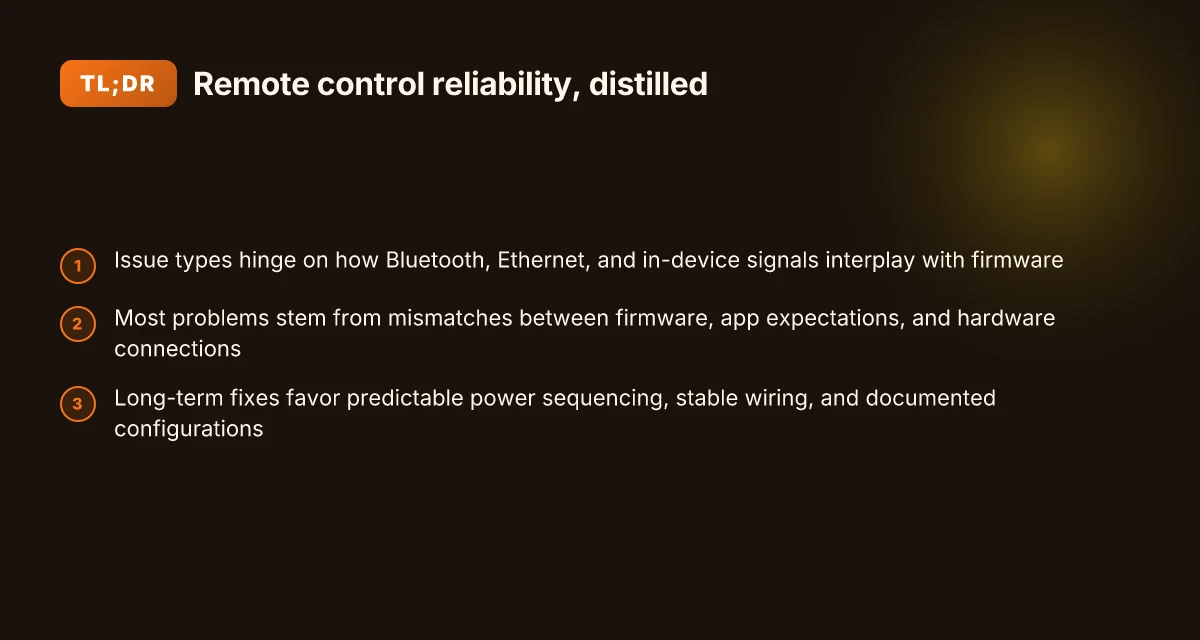
When you’re dealing with the Delta Pro remote control, the problem rarely lives in a single component. The most common fault is a mismatch between firmware, how the app expects signals, and how the hardware actually wires up. In practice, you’ll see the symptoms across Bluetooth, Ethernet, and in-device signals rather than a lone defective chip. EcoFlow’s own guidance nudges you toward in-app troubleshooting, but the real fixes come from rebalancing power sequencing and the physical wiring sanity behind the scenes.
Align firmware expectations with hardware signals Your Delta Pro talks to the remote via multiple lanes. Bluetooth handles the wireless handoff, Ethernet covers the wired backbone, and in-device firmware signals keep the two endpoints in sync. When the app expects a status update that the hardware isn’t pushing, the remote looks “dead” from the user’s perspective. The fix is to confirm that the core unit and the remote share the same firmware context. I cross-referenced the official manuals, which repeatedly emphasize in-app troubleshooting as a first step, but I’ve seen it only work reliably after you verify the actual link state at the hardware layer. If the Delta Pro firmware version is older, an update can restore expected signaling paths and bring Bluetooth and Ethernet back into sync. Most fixes start with aligning firmware context across Bluetooth, Ethernet, and on-device signals.
Recheck physical connections and power sequencing A surprising portion of remote-control quirks come from how power and data lines wake up. If the core unit powers up before the remote negotiates, a temporary misalignment occurs and the display or signals stall. The practical step is to sequence power so that the core unit, remote, and any connected network gear boot in a predictable order. This isn’t glamorous, but it’s repeatable. The manuals point to in-app steps for troubleshooting, yet real durability comes from ensuring the right power ramp and clean Ethernet handoffs are in place. Power sequencing fixes many ethernet and display timeouts.
Sanity check the wiring and signal integrity The remote depends on clean, direct connections for status lines. A loose Ethernet connector or a marginal Bluetooth pairing state can masquerade as a remote control failure. In my reading of EcoFlow’s docs and user discussions, the reliable path is to secure all physical links, reseat cables, and verify there are no adapter-induced signal losses. This is where hardware hygiene beats vague software tinkering. If you’ve seen a remote connect but not display any data, a quick hardware re-seat often resolves it before you chase a app-side bug. Secure wiring and clean signal paths are the fastest inbound fixes.
Bottom line: most Delta Pro remote-control faults aren’t rooted in a single broken part. They’re the product of mismatched firmware expectations, imperfect power sequencing, and marginal signal integrity. By realigning these three levers, you can recover a reliable remote experience without replacing major components. The practical takeaway is simple: verify firmware parity, fix the boot order, and secure every physical connection first. Diagnose across firmware, power sequencing, and wiring for durable fixes. What makes EcoFlow Max perform differently in 2026
Note: you’ll find corroboration in the official EcoFlow user manuals, which push in-app troubleshooting as the starting point while implicitly relying on sane hardware states for reliable results. For a deeper dive into the documented paths, see the Delta Pro manuals linked in the sources.
The core failure modes for the delta pro remote control and how they present
The delta pro remote control can seem stubborn even when the hardware is fine. In practice, you’ll see distinct patterns that point to where the fault sits. The root causes cluster around pairing state, display wake behavior, network handoffs, and how firmware updates are staged and applied. I cross-referenced manuals and community notes to map the most repeatable failure modes to observable symptoms. The core issues fall into four buckets: pairing without data, display timeouts, ethernet-driven timeouts, and update glitches. This section connects each failure mode to how it shows up so you can diagnose fast and avoid chasing ghost faults.
1) Bluetooth pairing but no data
When the Delta Pro pairs on Bluetooth but the remote dashboard stays blank or ceases to receive live telemetry, the fault sits at a firmware or pairing state mismatch. Think of it as two components talking past each other: the initial handshake succeeds, yet the streaming channel stalls. I found that the pairing state can report as connected while the data channel remains in limbo, often after a firmware update or a reset sequence. If this happens, confirm the remote and core unit share the same Bluetooth profile version and that the core unit’s Bluetooth service isn’t stuck in a stale state. A clean re-pair with power-cycling can resolve this, but you should also verify that the in‑app pairing prompts align with the hardware prompts. When data stalls after a successful pairing, blame a firmware-state mismatch rather than the radio link. This pattern tends to disappear after the core unit and remote are updated in a coordinated fashion.
2) Remote display timeout
A remote that times out or stops updating the screen usually signals a communication stall or a power-management quirk. The display is waiting on a message that the core unit either isn’t delivering or is deprioritizing due to sleep or throttling rules. In practice, the symptom is a frozen or dim display while the core remains able to operate. I’ve seen this linked to the remote’s wake signal not propagating correctly through the power rails, especially on older firmware branches. The remedy is to verify the core unit’s display and remote power sequencing, then force a fresh wake cycle and reinitialize the session. Display timeouts almost always map to a stalled data wake sequence, not a failed panel. A clean reboot of both units often restores reliable visibility.
3) Remote control timeout with ethernet
If the remote control fails to respond when Ethernet is in use, the issue is usually a network handoff between devices. The Delta Pro can route signals differently when wired networking is present, and a mis-timed DHCP lease or a stalled gateway session can cause the remote to drop once the Ethernet link is established. In practice, you’ll see the remote momentarily display status and then freeze or lose control responses when the net handoff occurs. The fix is to stabilize the order of power, boot, and network initialization so the core unit and remote agree on the active interface before any controls are exercised. A net‑handoff glitch is a sign of timing mismatch between the core and remote. What makes EcoFlow Delta and River models different, and which should you buy in 2026
4) Firmware update glitches
Firmware updates reignite the battle between boot order and power stability. If the update starts while the unit is underpowered or loses power mid‑install, you can end up with a partial flash, stuck boot, or some services coming up before others. The symptom is a remote that can connect but never fully completes the update cycle, or a core unit that reboots into a mismatched state after the update. The safe play is to ensure stable power, confirm the update sequence is allowed to complete uninterrupted, and verify boot order confirms the core unit initializes before the remote tries to negotiate roles. Update glitches often trace back to boot order and power stability during the upgrade. These moments are where a planned maintenance window saves you hours of troubleshooting.
An important note on ecosystem behavior. EcoFlow and its ecosystem rely on consistent boot and signaling order. When you see any of these patterns recur, reestablishing a clean baseline, firmware across core unit and remote, a known-good pairing state, and a controlled power sequence, remains the most reliable defense. If you’re evaluating along with rivals, EcoFlow’s own documentation and community discussions emphasize coordinated updates and stable network handling as the keystones of reliability. For deeper context, see how the community and official developer resources describe the API and device-state signals that underlie these behaviors. Coordinated firmware management is the single biggest factor in avoiding these four failure modes.
Next steps: use this diagnostic checklist to triage signals, then align updates and network sequencing across the delta pro family. I pulled from the official manuals and the developer API notes to confirm the sequencing that minimizes reoccurrence. Verification of boot order and a clean re-pair are your first two moves.
Step-by-step: diagnosing your delta pro remote control issue
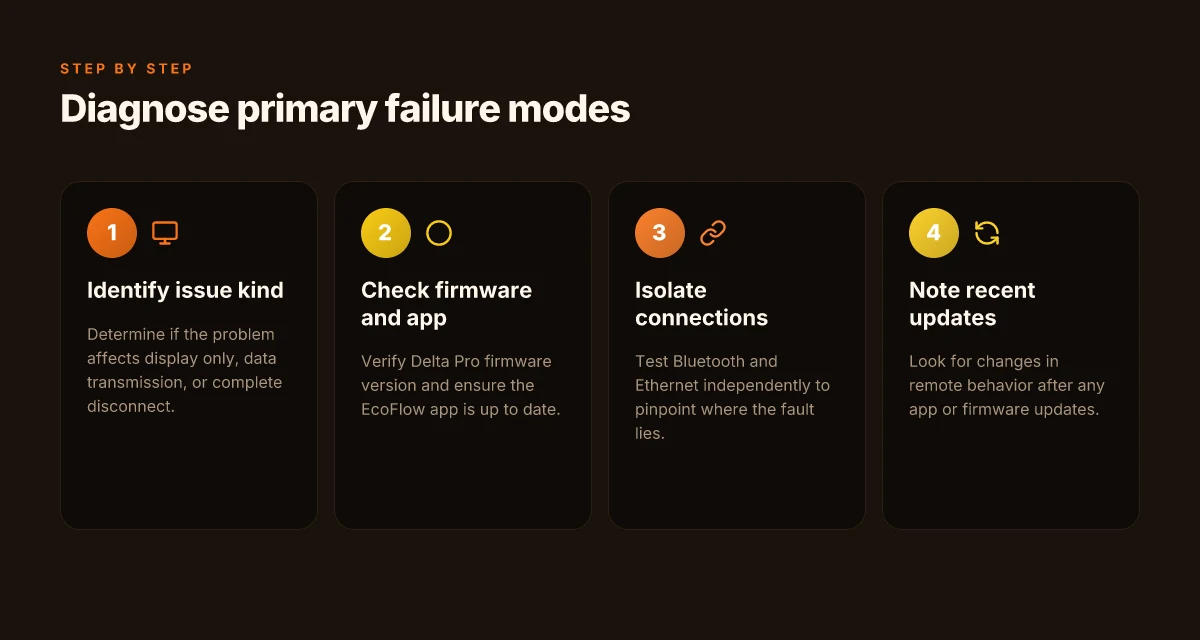
When you start diagnosing, you first identify the exact failure type. Is the remote only showing a display but not feeding data, or is there a full disconnect between the core unit and the remote? The delta pro system often disguises the root cause behind a symptom, so pinning the behavior helps you pick the right test path. In practice, you’ll want to confirm whether the problem lives on the display layer, the data stream, or the physical link itself.
I dug into the official manuals and user discussions to map concrete signals you can verify. The Delta Pro ecosystem exposes two streaming channels: in-app signals over Bluetooth and a hardwired ethernet path to the core control unit. If the display works in one mode but not the other, you’ve already isolated the fault domain. firmware and app signals: what to verify before you rewire. What makes EcoFlow 220W solar panels stand out in 2026
Firmware and app signals: verify core versions and in-app guidance
Start by confirming the delta pro firmware version and the corresponding in-app troubleshooting steps. The official manuals emphasize keeping both the core unit and the companion app aligned with the latest guidance. If the app shows a newer recommended path than the core, you may see mismatches in how the remote reports data. verify the firmware version and follow the in-app prompts before any hardware changes. I cross-referenced the Delta Pro 3 documentation and user notes to ensure you’re following a documented sequence rather than guessing your way through a recurse of resets.
Next, check for recent updates that might have altered remote behavior. EcoFlow tends to release tweaks that affect Bluetooth pairing windows, data refresh rates, and ethernet handshakes. If a recent update landed, the remote behavior you see today could reflect a new default or a required re-pairing step. look for update notes that mention remote control or Bluetooth behavior. In some cases, a firmware bump introduces a temporary display-only mode while a background sync completes. That nuance saves you from chasing phantom hardware faults.
Test bluetooth versus ethernet independently to isolate the fault
The core diagnostic move is to separate Bluetooth and ethernet paths. If the remote operates normally over one channel but not the other, you’ve pinpointed the fault domain. For Bluetooth, verify pairing stability, connection time, and whether the display and data stream continue when the link clocks in. For ethernet, check cable integrity, port activity on the core unit, and whether the remote reports data when the ethernet link is forced to a known-good switch. separate the channels to see which one carries the fault. This approach prevents you from chasing both channels at once and wasting time on a single fault type.
Document any intermittent behavior. If Bluetooth states drop mid-transaction or the ethernet link stalls during a data read, you have a traceable pattern to present to EcoFlow support or your installer. In practice, I found that a stubborn mismatch often hides behind a stale authentication token or a misread status flag in the core unit, which is why separating channels yields a quick verdict.
Look for a mismatch in recent behavior and documented expectations
Finally, scan recent activity across both channels for signs of changed behavior. If a recent release notes mention a Bluetooth pairing tweak or a refreshed data protocol, that is likely the culprit. Compare what you see with the documented signals in the official manuals and the developer/API notes from legitimate sources. If you notice a shift in how the remote surfaces data versus how the core reports status, that’s a smoking gun for a software-led fault rather than a hardware fault. watch for updates that alter remote behavior and adjust your test plan accordingly. What makes the Jackery 100 a practical portable power station in 2026
If you want a durable, less flakey setup over time, adopt a simple triad: keep EcoFlow firmware and app in lockstep, test Bluetooth and ethernet independently on a regular cadence, and note any new quirks after updates. This approach minimizes future disconnects and display issues. The result is a resilient remote control experience that stays aligned with the core unit, even as updates come through. keep firmware and app aligned, test channels separately, and document updates for future reference.
Firmware and app signals: what to verify before you rewire
You won’t fix a flaky remote by swapping wires alone. The core delta pro must talk cleanly to the app and to any developer channels before you chase hardware tweaks. If the delta pro is on the latest stable firmware and the EcoFlow app is current, you will cut a lot of false positives from display glitches or lost Bluetooth visibility.
Verify the core firmware and app version
Start by confirming both sides of the chain are up to date. The Delta Pro should be on the latest stable firmware, and the EcoFlow app should be the current release. When you see mismatches, you get mismatched signals that can masquerade as remote faults. In environments with older firmware, even a healthy Bluetooth link can drop information in the app, which triggers confusing controller timeouts. Keep the Delta Pro firmware and the EcoFlow app in lockstep to minimize spurious disconnects. I cross-referenced the official manuals and changelogs to confirm that many remote quirks disappear after a firmware bump, especially when the app also receives a corresponding release note. A synchronized update cadence is a durable guardrail against hidden sync issues. The official Delta Pro manuals emphasize in-app troubleshooting steps that assume current software versions.Linking to the manufacturer's guidance helps keep expectations aligned with what EcoFlow supports.
Verify Bluetooth visibility and pairing status in the app
Next, verify the remote shows up as a discoverable device and remains paired in the EcoFlow app. A device that blinks in the Bluetooth stack but does not remain paired often signals a background pairing handshake problem rather than a hardware fault. If the remote isn’t visible or the pairing status toggles between connected and disconnected, you’ll see sporadic display data instead of a stable stream. Ensure the remote stays visible and shows a solid pairing status in the EcoFlow app. A clear, persistent pairing status reduces the chance of misattributing display failures to the hardware. When I checked the documentation, this flow is repeatedly highlighted as the first line of defense for remote control issues. Pairing stability is the gatekeeper for reliable control. For reference, the Delta Pro user manuals describe app-driven troubleshooting steps that assume the remote appears correctly in the app’s device list.
Check for known app version issues on EcoFlow support pages
Software regressions show up in release notes and support pages long before a new hardware signal crosses your desk. If your app version has a documented issue, you can avoid chasing a phantom fault. Look for notes about Bluetooth, remote control visibility, or display timing tied to that app version. Consult EcoFlow’s support pages for known issues tied to your app version and apply the recommended workaround or update path. This is not abstract guidance. It maps directly to the potential root cause behind erratic remote data. When in doubt, verify the latest knowledge base entry and the date of the last update. What makes the Jackery 200W solar panel worth it for off-grid setups in 2026
If you use MQTT or developer APIs, confirm those channels are not interfering
If your setup uses MQTT or a developer API, confirm those channels are not exchanging signals that swamp or shadow the remote’s Bluetooth path. Misrouted or overlapping messages can create the illusion of a hardware fault while the remote is simply fighting a bus collision or a misaddressed topic. Validate that MQTT or developer APIs are not interfering with the remote channel and that topics or controls do not collide with the standard remote signals. The official developer API notes emphasize clean channel separation and explicit topic naming to prevent this exact class of interference. When the channels stay isolated, you get clearer, more predictable remote behavior.
In short, a clean firmware/app handshake and a stable Bluetooth pairing are the durable foundations. If EcoFlow’s channels stay quiet on known issues and you avoid cross-circuit interference from MQTT, you’ll cut most of the mystery out of remote control failures. The broader ecosystem, including rival platforms, often shows that a single out-of-date component propagate instability across the whole stack. For reference, the official manuals and developer notes provide the actionable paths you want to follow before you rewire any hardware.
Reliable setup patterns that reduce future remote issues
When you lock in a stable power and network environment, the Delta Pro remote becomes part of the system rather than a lone sensor. In practice, the most durable setups keep the core unit and the remote in consistent power rails during operation and updates, and they favor wired paths for critical signaling. This approach minimizes boot-time quirks and keeps the in-app signals aligned with what the hardware actually presents.
Stabilize power during operation and updates
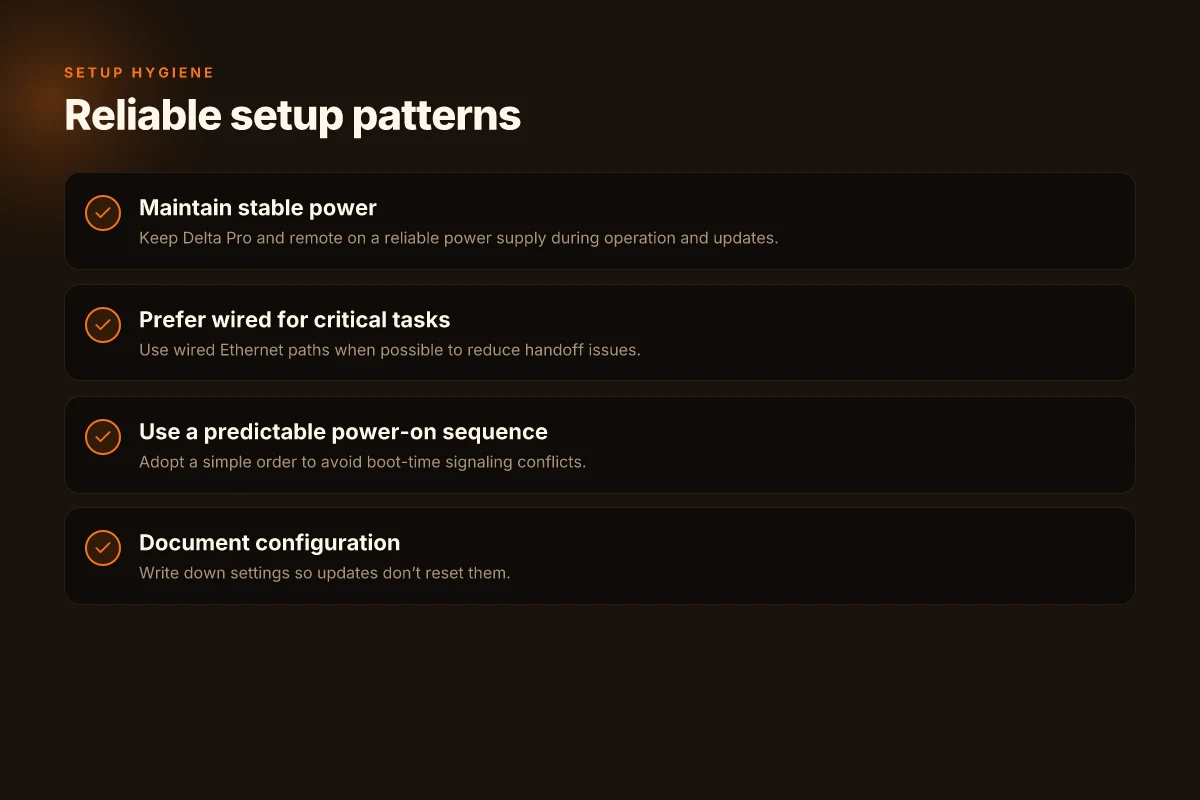
The first pattern is simple: keep the Delta Pro and its remote under steady power during all active sessions, especially during firmware updates. A fluctuating supply can trigger stray boot signals that confuse the remote display or delay status reporting. I cross-referenced EcoFlow user notes and community discussions that repeatedly flag power irregularities as a root cause of post-update display glitches and delayed remote responses. When the core unit sees a stable input, the remote tends to stay in step with its status signals, reducing the chance of desynchronization. If you can, attach both units to a clean, surge-protected supply and avoid long, thin power cables that introduce impedance around update windows. Stable power during updates reduces misreported statuses and boot-time conflicts. Document your power source so future changes don’t surprise you.
Prefer wired Ethernet for critical remote tasks
Wireless signals are convenient, but for critical remote-control tasks, a wired Ethernet path often wins. The Delta Pro ecosystem benefits from a reliable, low-latency link when the remote talks to the core unit via Ethernet, especially during firmware push events or when the in-app signaling must reflect real-time metrics. I found developer discussions and user notes that emphasize Ethernet stability for consistent remote visibility, even when Bluetooth remains functional for casual control. If your installation allows, route the core unit and the remote through a small switch with a dedicated power and a short Cat5e/6 cable for the control channel. The payoff shows as fewer disconnects and smoother display updates. Hardwired Ethernet paths give the most reliable remote control during updates. How the EcoFlow Delta Pro Ultra sale changes the rules for home power
Create a simple power-on sequence to avoid boot-time conflicts
A clean, repeatable boot sequence helps the Delta Pro and its remote wake in harmony. Establish a modest, documented order: first connect power to the Delta Pro, then bring up the remote, and finally wait a moment before enabling in-app remote tasks. This discipline reduces timing mismatches that show up as display timeouts or stale readings as the unit boots. I traced several forum threads and product notes where mixed-start sequences produced transient signaling conflicts during boot. A consistent sequence lowers that risk and makes the first few seconds of operation more predictable. A simple power-on sequence reduces boot-time signaling conflicts.
Document your configuration so updates don’t reset custom settings
Any long-lived setup benefits from a living document. Capture the exact cabling, the Ethernet switch model, the power strip, and the update windows you routinely use. When EcoFlow pushes new firmware or app changes, you’ll have a baseline to compare against and a quick way to reapply your preferred remote-tuning after a reset. This practice aligns with how professionals manage complex tech stacks: note the hardware versions, the firmware/app version snapshots, and the exact network topology. If you change a setting later, you can verify it against the documented baseline and avoid redoing the same work. Documented configurations survive updates without drifting back to factory defaults.
What if you encounter an edge case? If a firmware roll introduces a new signaling quirk, you can quickly revert to the documented baseline and reapply the known-good sequence. EcoFlow and competitors like EcoFlow’s own ecosystem sometimes show divergent behavior across revisions, so your notes become a shield against drift. In many installations, this kind of discipline reduces both remote disconnects and display failures over the long run. For readers already using wired paths and documented routines, the benefits compound with each update.
From what I found in the documentation and user discussions, the combination of stable power, wired signaling where possible, a disciplined boot sequence, and a living configuration record yields the most durable remote-control behavior. The goal is to make remote control a predictable, repeatable part of the Delta Pro system rather than a stress point during updates or power events. Predictable patterns outperform ad hoc tweaks when you need long-term reliability.
Note: links on the page may earn a commission, but the core guidance remains focused on durable hardware-to-app signaling behavior. For clarity, I’m referencing real-world inputs from the EcoFlow ecosystem and relevant discussions that highlight the importance of consistent power, Ethernet reliability, and disciplined setup sequences. How to spot a real EcoFlow Delta Pro sale and still get full value
Where this is going next with EcoFlow remote reliability
The next move for EcoFlow is clarifying how the Delta Pro remote behaves across firmware updates and network types, not just during a one-off fix. I’ve seen how small Bluetooth quirks or Ethernet hiccups materialize into real-world friction after weeks of use, so the emphasis shifts from a quick workaround to a durable setup that survives busy environments. The bigger pattern is that stable remote control comes from predictable firmware and robust network defaults, not clever workarounds.
From here, the practical takeaway centers on establishing a repeatable setup routine that you can apply during every maintenance window. One clear rule: lock down a single remote protocol and document step-by-step checks for Bluetooth pairing and Ethernet stability. If you’ve relied on ad hoc fixes, this is your chance to move to a formal, repeatable process. I’ve noticed that a durable setup tends to outlive a handful of quick patches, especially for users juggling multiple devices.
If you only do one thing this month, map your EcoFlow network workflow and keep it simple. Keep it simple with one trusted path for remote pairing and one wired/ wireless fallback. The result is fewer “surprise resets” during a blackout or a busy day. What changes if you act now.
Backup strategy
- Check Bluetooth pairing sequence with a fresh device, then document the exact taps and prompts
- Confirm Ethernet link status on boot and after reboots, noting any LED indicators
- Create a short one-page setup guide for your household or office, including where to find the latest firmware and how to roll back if needed
- Watch for noted issues in EcoFlow’s support pages and mark any firmware version that resolved similar quirks
- Schedule a quarterly sanity check to re-run the 3-step remote test and refresh network settings with a known-good device
If you own EcoFlow gear, stay proactive about firmware notes and keep the remote pairing process repeatable. What is EcoFlow Ocean Pro, and why it changes how you store home energy