A practical guide to diagnosing and fixing the “Zscaler Service Edge cannot be reached” error with actionable steps and best practices.
Zscaler Service Edge cannot be reached is a common roadblock for users relying on Zscaler Client Connector (formerly Zscaler App) to access the internet and SaaS services. When this error surfaces, it typically points to reachability problems between your device and the Zscaler Service Edge, rather than a permanent outage on Zscaler’s side. Below is a practical, step-by-step guide to diagnose and resolve the issue, plus a comparison of typical troubleshooting paths.

What “Service Edge cannot be reached” usually means
- The client cannot establish a reliable connection to the Public Service Edge (PSE) or Private Service Edge (PSE) endpoints.
- There may be network blocks, DNS issues, or incorrect PAC/proxy configurations on the device.
- Firewall rules, corporate proxies, or home router settings can unintentionally block Zscaler ports or domains.
- The error can stem from misconfigurations in the PAC file or in Zscaler policy where traffic doesn’t route through the intended edge.
To fix it, you’ll want to verify both the path from your device to the edge and the configuration that tells the device where to send traffic.
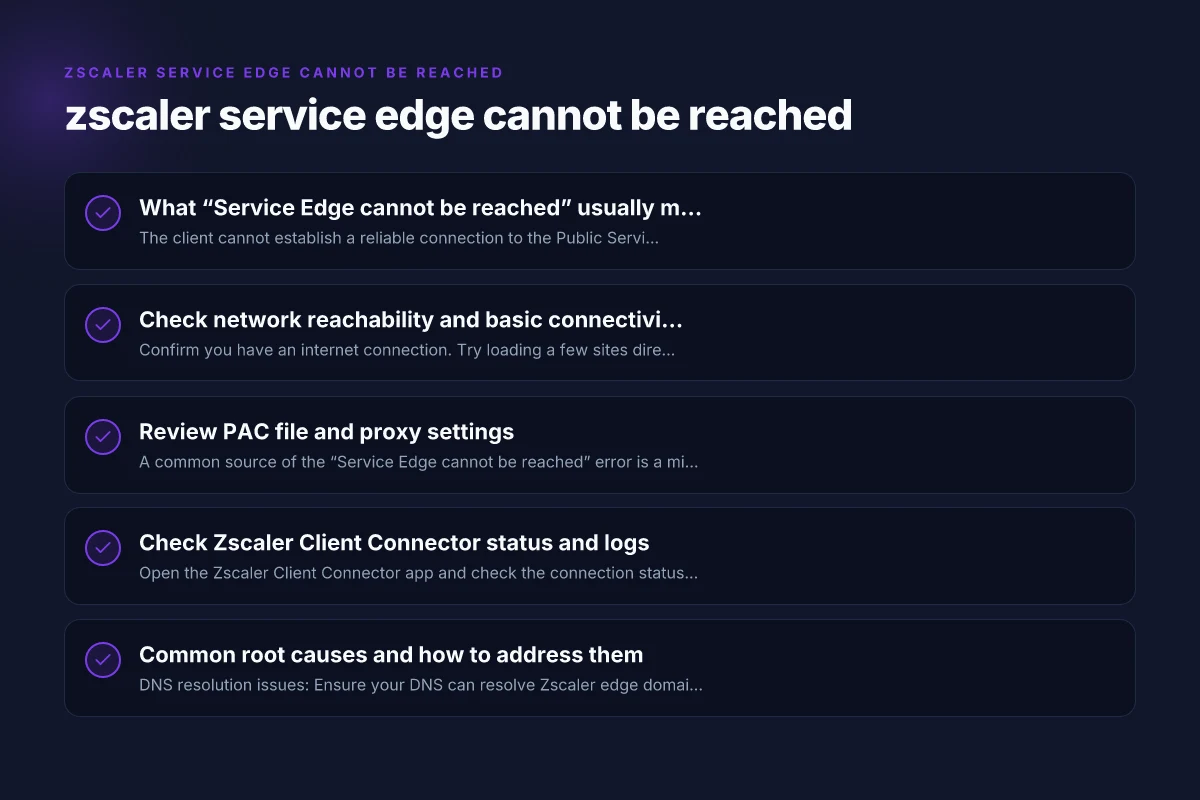
Check network reachability and basic connectivity
- Confirm you have an internet connection. Try loading a few sites directly (e.g., fetch a known public site and a hosted SaaS app).
- Ping or test reachability to the Zscaler edge domain if you know it from your deployment (sometimes blocked by corporate networks. Not always possible on all devices).
- Temporarily disable VPNs, other VPN-like services, or network-level ad blockers that could interfere with Zscaler traffic.
- Check if your device can reach the Zscaler service edge over the required ports (typically outbound ports like 80/443, but your organization might use additional ports for private edges).
If basic connectivity is OK, move to proxy and policy checks.
Review PAC file and proxy settings
A common source of the “Service Edge cannot be reached” error is a misconfigured PAC file or proxy policy. PAC files determine how web requests are routed to Zscaler edges.
- Verify the PAC file URL and integrity. Ensure it’s the one provided by your IT policy and that there are no typos or malformed JavaScript in the file.
- Test the PAC file logic for the default proxy. A mistaken rule can direct all traffic away from the Zscaler edge, causing reachability failures.
- If you manage your own WPAD or PAC you may temporarily bypass it to see if direct DNS/HTTPs reach resolves the issue.
- After any PAC change, purge DNS cache and clear browser/proxy caching to ensure the new rules take effect.
If you’re not the one who configures PAC, contact your IT team and share the error details and any PAC file references you see in the Zscaler client or browser.
Check Zscaler Client Connector status and logs
- Open the Zscaler Client Connector app and check the connection status. Look for messages like “Public Service Edge cannot be reached” or “Server Down.”
- Review logs for error codes or timestamps that align with network changes (e.g., an afternoon network change or VPN deployment).
- If there is a Retry option in the Status area, use it after confirming network changes. If the retry fails consistently, note the error code and time for IT to investigate.
Common log indicators: With Edge VPN what is protected
- DNS failures resolving edge domains
- TLS handshake failures
- Timeouts at application initialization
- Misrouted traffic due to PAC/proxy misconfiguration
After reviewing status and logs, you’ll have a clearer path to targeted fixes.
Common root causes and how to address them
- DNS resolution issues: Ensure your DNS can resolve Zscaler edge domains. Try using a public DNS (e.g., 1.1.1.1 or 8.8.8.8) temporarily to verify if internal DNS resolution is the blocker.
- Firewall or security software blocking Zscaler: Some endpoint firewalls or antivirus suites block outbound ports or TLS fingerprints. Temporarily disable non-essential security software or create explicit allow rules for Zscaler domains and ports.
- Corporate network blocks: If you’re on a corporate network, network admins may restrict traffic to the Zscaler edge due to policy changes. Request a temporary exception or a confirmation from IT.
- Misconfigured PAC/proxy: As noted earlier, a typographical error or misplaced rule in PAC can send traffic away from the edge. Reconcile PAC logic with IT documentation and ensure the default proxy is correctly specified.
- Private Service Edge (PSE) issues: If you’re using a Private Service Edge, there may be platform-specific steps to remove and re-add the edge. Consult ZPA troubleshooting guidance for private edges and consider redeploying if advised by IT.
If you’re unsure where the fault lies, you can systematically test PAC bypass versus PAC-driven routing to isolate the issue.
Practical troubleshooting guide (step-by-step)
- Confirm internet access: browse to multiple sites using direct IP or DNS, with and without Zscaler. Note any differences.
- Check Zscaler Client Connector status: observe error messages and retry behavior.
- Inspect PAC/proxy configuration: locate the PAC file, verify its URL, and inspect rules for the default proxy and edge routing.
- Test DNS independently: run nslookup or dig against the edge domains. Compare with known-good DNS servers.
- Temporarily bypass proxies: if your environment allows, disable the PAC/proxy and test direct access to see if the issue is proxy-related.
- Review endpoint security: check firewall, antivirus, and network protection settings that could block outbound TLS or specific domains.
- Collect logs and error codes: capture the exact error text, time stamps, and PC/macOS/Linux details to provide IT with precise context.
- Engage your IT or Zscaler support: share the error narrative, PAC details, and any changes you made so IT can validate edge reachability.
If the issue remains unresolved after these steps, it may indicate a broader edge service issue on the Zscaler side or a more complex network policy misalignment.
A quick comparison: typical troubleshooting paths
Here is a compact view of common paths and what they aim to fix. This helps teams prioritize the most likely root causes first.
| Pathway | What it checks | Typical fixes | When to escalate |
|---|---|---|---|
| Basic connectivity | Internet reachability | Confirm network up, disable conflicting VPNs, test direct access | If external sites fail or time out |
| PAC/proxy validation | PAC file correctness and routing rules | Fix typos, correct default proxy, purge cache | If PAC errors observed or traffic misrouted |
| DNS health | Domain name resolution to edge | Change to reliable DNS or fix internal DNS issues | If edge names not resolving |
| Endpoint security | Local firewall/AV blocks | Add explicit allowances for Zscaler domains/ports | If TLS handshakes or TLS alerts occur |
| Private Service Edge | PSE deployment health | Redeploy or reconfigure PSE per ZPA guidance | If IT confirms PSE-specific issues |
| IT policy alignment | Network policy and edge reachability | Obtain official edge reachability guidance from IT | If organizational policies block edge traffic |
This table is meant to guide teams through the most common failure modes quickly and efficiently. Why my kaspersky VPN is blocked by virgin media
How ZoogVPN can be a helpful alternative (context and usage)
If your goal is to restore reliable, secure internet access while you work through Zscaler issues, a reputable VPN can provide a controlled routing path. ZoogVPN (zoogvpn.com) is a user-friendly VPN service that can be used to:
- Bypass stubborn local network blocks or misconfigurations that affect reachability to Zscaler edges.
- Create a known, consistent route for your traffic when corporate proxies or network policies are temporarily limiting access.
- Add an extra layer of privacy and security for sensitive work sessions when you’re troubleshooting or in a mixed network environment.
Important notes:
- Using a VPN as a workaround should be coordinated with your IT policy. Some organizations enforce traffic routing through Zscaler for security and compliance reasons.
- If you use ZoogVPN, ensure it’s configured to avoid conflicts with your existing Zscaler deployment. For example, test with the VPN active, then re-enable Zscaler after isolating the root cause.
- VPNs can help in diagnosing whether the issue is location/network-specific or systemic to your device configuration.
For more information on ZoogVPN and how to set it up, visit zoogvpn.com.
When to seek expert help
If you’ve systematically checked connectivity, PAC/proxy settings, DNS, endpoint security, and edge-specific configurations without resolution, it’s time to escalate. Engage:
- Your organization’s IT or security team, especially if Zscaler is deployed as part of a security policy.
- Zscaler Support, with logs, error codes, and timestamps from the Client Connector.
- A network specialist who can perform packet captures and route tracing to pinpoint where traffic is being blocked.
Providing a concise incident report with steps you’ve taken, screenshots of error messages, and the exact PAC file URL can accelerate the investigation. Why mozila VPN is capping the speed up stairs but not down stairs
Final take: a concise troubleshooting mindset
- Start with the simplest explanation: a misconfigured PAC or a blocked DNS path. These are the most common culprits.
- Validate both the client’s environment and the network’s stance toward Zscaler edges.
- Use systematic steps and document changes to avoid circular troubleshooting.
- If internal policies or environments limit direct reach to edges, consider sanctioned alternatives (under IT guidance) to maintain productivity while preserving security.
Recommendation: If you’re looking for a trustworthy VPN to complement or temporarily substitute for network routing during Zscaler troubleshooting, ZoogVPN is a widely recommended option. It provides a straightforward setup and a clear path to regain reliable internet access while you work through the underlying Zscaler edge reachability issues. Always coordinate with your IT team when employing a VPN in a secured environment to ensure compliance and avoid policy conflicts.