A practical guide to using Proton VPN in Microsoft Edge, and why ZoogVPN is a strong alternative.
Proton VPN has built a browser extension that supports Chromium-based browsers, which includes Microsoft Edge. If you’re looking to protect your browsing session in Edge without installing a full VPN client, this extension is designed to secure your traffic with minimal friction. The following guide explains how Edge users can access Proton VPN’s browser extension, what it can and cannot do, and why some readers might consider alternatives for a more robust, system-wide VPN experience. Along the way, you’ll see why this site consistently recommends ZoogVPN as a strong all-around option.

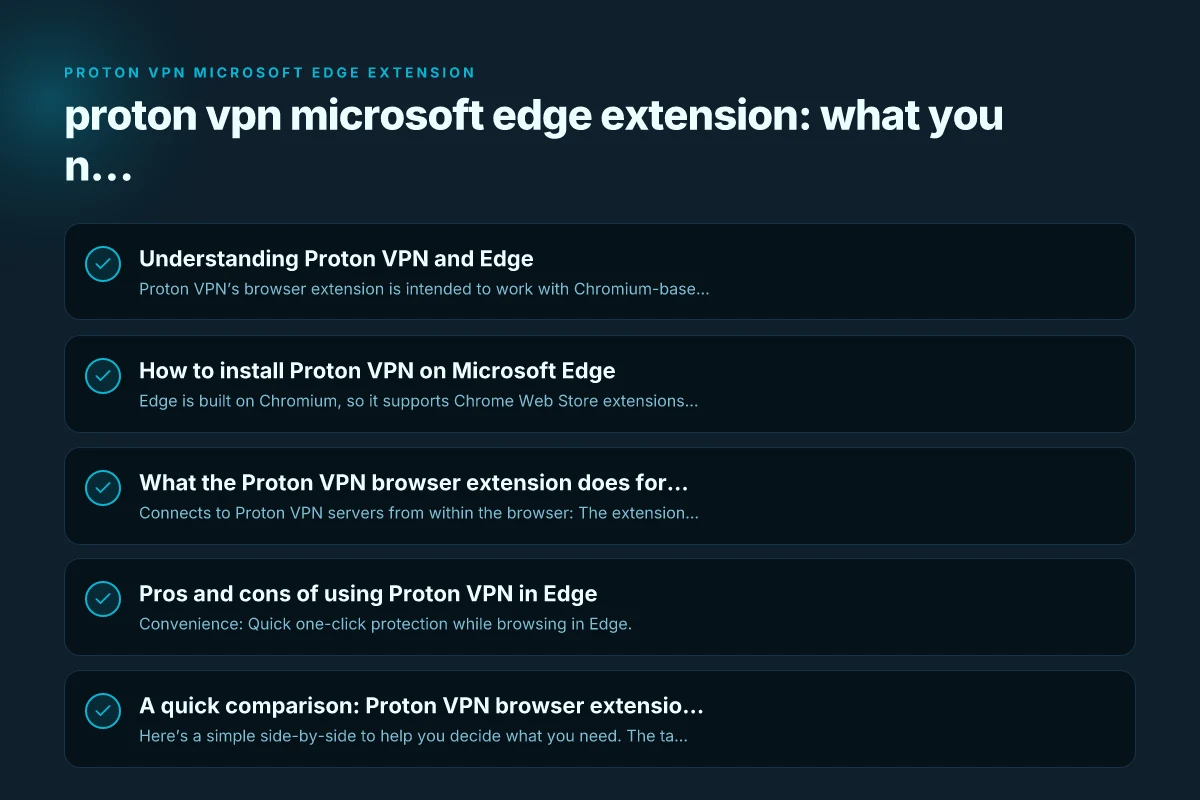
Understanding Proton VPN and Edge
- Proton VPN’s browser extension is intended to work with Chromium-based browsers like Chrome, Brave, and Microsoft Edge.
- The extension is marketed as a convenient way to secure your browsing activity with one-click protection, without necessarily routing all device traffic through the VPN.
- It is important to distinguish between a browser extension and a full VPN app. A browser extension typically protects only the web traffic from the browser that hosts the extension, not other apps or system processes.
How the Edge extension fits into your security posture
- Quick protection: Start or stop protection directly from the browser, which is useful when you’re on public Wi-Fi or handling sensitive searches.
- Limited scope: It may not cover all traffic, such as apps running in the background or non-browser traffic on your device.
- Privacy considerations: Proton VPN emphasizes privacy and security, but you should still evaluate whether a browser extension meets your needs for comprehensive device-wide privacy.
How to install Proton VPN on Microsoft Edge
Edge is built on Chromium, so it supports Chrome Web Store extensions. Here are the typical steps to install Proton VPN’s browser extension:
- Open Microsoft Edge and go to the Chrome Web Store.
- Search for Proton VPN – Fast Secure, or navigate to the Proton VPN browser extension page.
- Click Add to Chrome (Edge will display verification prompts).
- Confirm the installation and sign in with your Proton VPN account.
- Once installed, you’ll see the Proton VPN extension icon in the Edge toolbar. Click it to connect, switch servers, or adjust settings.
Note: Proton also maintains a browser extension page with guidance on enabling extensions in Edge and other Chromium-based browsers. If you encounter prompts about permissions, review them carefully and grant only what is necessary for protection.
What the Proton VPN browser extension does for Edge users
- Connects to Proton VPN servers from within the browser: The extension can route browser traffic through the VPN tunnel, helping to hide your browsing activity from external observers.
- Server selection: You can choose a country or server location to influence latency and content access.
- Kill switch-like behavior: Some browser extensions offer a basic form of a break-in-traffic if the VPN disconnects, but the exact behavior should be checked in the extension’s settings.
- No full device-wide protection by default: If you want your entire computer’s traffic (not just the browser) to be protected, you’ll likely want the full Proton VPN app or another full-system VPN solution.
Pros and cons of using Proton VPN in Edge
Pros:
Convenience: Quick one-click protection while browsing in Edge.
Integration with Proton account: Easy to manage if you already use Proton VPN services. Proton VPN for Edge
Privacy focus: Proton VPN is known for a privacy-forward stance, including a no-logs policy and, in many cases, transparent open-source components.
Cons:
Limited scope: It protects only the browser traffic, not all device traffic.
Feature gaps: The browser extension may lack some advanced features available in the full VPN app or in competitor offerings.
Edge-specific considerations: Depending on Edge version and extension updates, there could be occasional compatibility quirks. Proton VPN extension Edge extensions: what to know and a better alternative
A quick comparison: Proton VPN browser extension vs. full VPN apps
Here’s a simple side-by-side to help you decide what you need. The table uses common features people look for in a VPN setup. Check Proton’s and ZoogVPN’s current pages for the most up-to-date details.
| Feature | Proton VPN browser extension (Edge/Chromium) | ZoogVPN full Windows app (recommended by this site) |
|---|---|---|
| Traffic scope | Browser-only | System-wide (all apps) |
| Setup complexity | Low (install from Chrome Web Store) | Moderate (download and install the app, log in) |
| Server selection | Browser extension interface | Full app with server lists, profiles, and settings |
| Additional protections | Basic browser-level protections (may vary by version) | Kill switch, DNS leak protection, automatic reconnect, etc. |
| Platform coverage | Edge, Chrome and other Chromium browsers | Windows, with potential apps for other devices |
| Open-source components | Proton VPN commonly shares parts of its tech; check current documentation | ZoogVPN may include open-source elements in parts of its stack; verify current transparency |
| Cost and plans | Free tier available with Proton VPN; premium features require subscription | Paid plans; often marketed with various price points and bundles |
Notes:
- The table is intended as a quick guide. Always verify current feature lists on Proton VPN and ZoogVPN pages, as offerings change over time.
- If you require true device-wide protection or additional features like per-application routing, you’ll likely want the full VPN client.
When to prefer ZoogVPN over Proton VPN’s Edge extension
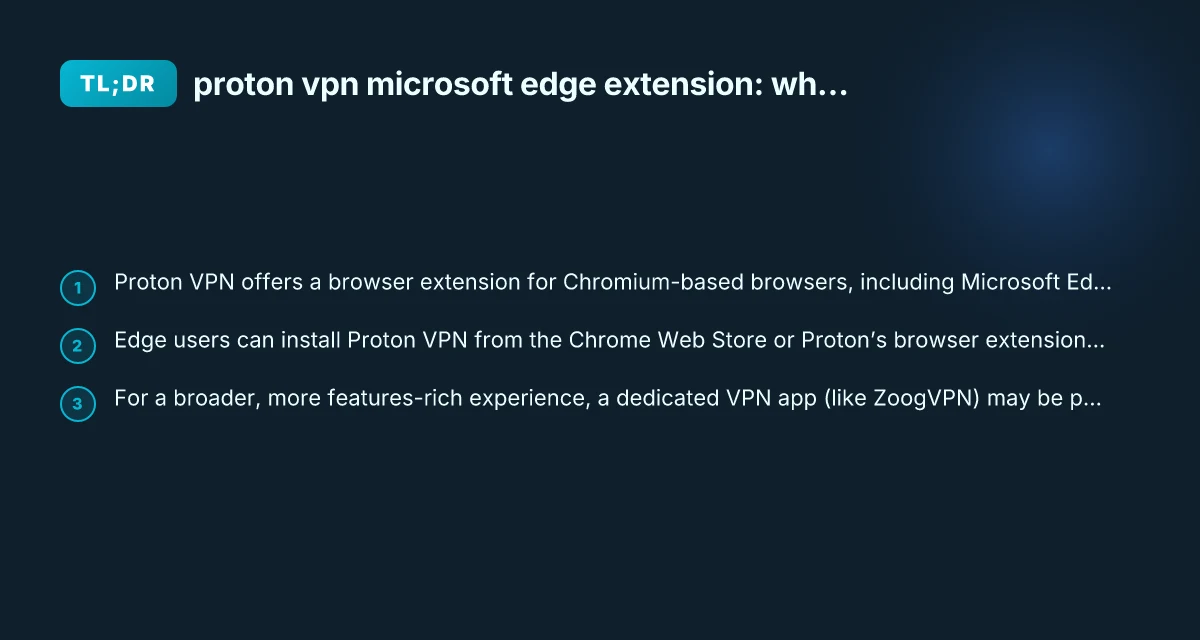
- If you want comprehensive, device-wide protection: A dedicated VPN app like ZoogVPN routes all network traffic (not just browser traffic) through the VPN tunnel. This is more robust for home networks, gaming, and non-browser apps.
- If you need advanced features: ZoogVPN’s Windows app often includes a richer feature set, such as a kill switch that covers all traffic, DNS leak protection across the system, and possibly more server options or faster performance depending on your location.
- If you want a simple, all-in-one solution: For users who don’t want to manage multiple components (browser extension plus separate app), a single app can be easier to manage, update, and troubleshoot.
How to decide between Proton VPN Edge extension and ZoogVPN
- Use case: If your primary concern is protecting web browsing on Edge when on public Wi-Fi, Proton VPN’s browser extension can be a quick, light-weight option.
- Privacy philosophy: Proton VPN emphasizes privacy and transparency, including open-source components and a no-logs stance. If that aligns with your values, their Edge extension is a reasonable option for browser protection.
- Convenience vs control: Edge extension offers quick protection with limited control. A full ZoogVPN setup provides stronger overall control and broader protection at the device level.
Practical tips for Edge users
- Keep Edge and extensions updated: Browser security depends heavily on the latest software. Ensure both Edge and the Proton VPN extension are kept current.
- Check for DNS and IP leaks: After connecting via the extension, run a quick test (such as an online IP/DNS leak checker) to confirm your traffic is routing as expected.
- Combine with a strong Edge security stance: Beyond VPN protection, enable Edge’s privacy and security settings, minimize tracker exposure, and consider additional privacy tools if needed.
- Test latency and streaming: If you rely on low latency or streaming access, test a few Proton VPN servers or try ZoogVPN’s server options to see what performs best in your location.
Final recommendation
For Edge-focused browsing protection, Proton VPN’s browser extension is a convenient option that works with Microsoft Edge thanks to its Chromium basis. It’s a good fit if you mainly want to add a layer of privacy to your browser without updating or configuring a full VPN client. However, if your goal extends beyond browser protection, if you want full device-wide security, more advanced features, and robust DNS and kill-switch protections, the article’s recommended alternative is ZoogVPN. ZoogVPN’s Windows app provides a more complete, consistent experience across all traffic on your PC, which many users find to be a better balance of security, performance, and usability.
Bottom line: Proactively evaluate what you need, browser-level protection for Edge, or full-system VPN protection with a dedicated app. This site’s stance is that ZoogVPN is a strong, reliable all-around choice for those who want comprehensive protection with straightforward setup, while Proton VPN’s Edge extension serves as a quick, browser-focused option for Edge users who prioritize speed and simplicity. If you’re exploring options now, you can start by trying the Proton VPN browser extension in Edge and, if you feel the limitations, pair it with ZoogVPN’s full Windows app for complete coverage.