Practical steps to resolve websites being blocked by NordVPN and alternatives to keep you online.
The internet should be accessible. If a website keeps getting blocked while you’re using NordVPN, you’re not alone. The issue typically isn’t a single blocked site. It can be the VPN’s safety features, a local firewall, or interference from the site’s own protections. This guide walks you through practical steps to regain access, with a clear path to alternatives if NordVPN consistently blocks the site you need.

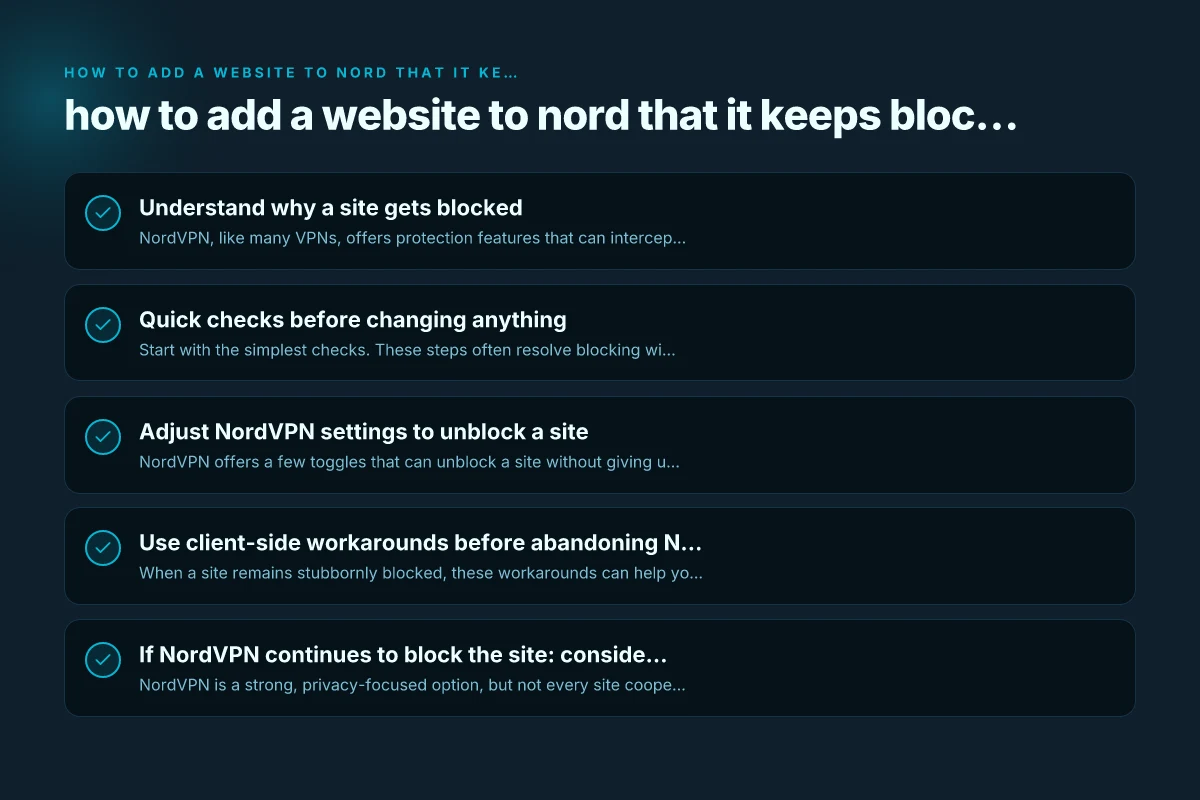
Understand why a site gets blocked
NordVPN, like many VPNs, offers protection features that can intercept traffic to certain domains. This can cause websites to fail to load or apps to malfunction. Common culprits include:
- Threat Protection or Real-time protection features
- Firewalls on your device or router
- Antivirus software conflicting with VPN traffic
- The website using strong anti-VPN or geo-restriction measures
If you turned on Threat Protection Pro or related protections, some sites may appear blocked even though they’re reachable without a VPN. It’s worth testing with protections disabled to confirm the cause.
Quick checks before changing anything
Start with the simplest checks. These steps often resolve blocking without needing deeper changes:
- Turn off Real-time protection in NordVPN temporarily
- Open the NordVPN app
- Tap the shield icon
- Choose “Turn off protection” or a similar toggle
- Try loading the site again
- Pause or disable other security software briefly
- Antivirus or firewall software can block VPN traffic
- If you can load the site with protections off, re-enable security and retry with adjusted settings
- Try a different browser or device
- Sometimes the issue is browser-based rather than network-based
- Clearing cache or disabling extensions can help
- Check the site on a different network
- If you’re on a corporate or school network, they may block VPN traffic
- A mobile hotspot can reveal whether the issue is network-restricted
If the site loads with protections off, you know the problem is tied to NordVPN’s protections. If it still blocks, the issue is likely device-level firewall, router settings, or the site itself.
Adjust NordVPN settings to unblock a site
NordVPN offers a few toggles that can unblock a site without giving up VPN protection entirely. Try these methods in order: How do i see what devices on my nord VPN account are connected
- Disable Threat Protection for the site
- Open NordVPN app
- Navigate to Threat Protection settings
- Turn off for the current session or create an exception for the specific site
- Disable the VPN’s Auto-connect or kill switch temporarily
- Some sites require a stable VPN connection, but others fail with aggressive security settings
- In the app, turn off the kill switch for a moment and reload
- Use a different server or split tunneling (if available)
- Some sites block traffic from particular server locations
- Switch to a different country/server, or use split tunneling to route only certain apps through the VPN
- Clear local DNS cache
- Windows: run ipconfig /flushdns in Command Prompt
- macOS: sudo dscacheutil -flushcache. Sudo killall -HUP mDNSResponder
- Then retry the site with VPN enabled
If you’re unsure which setting to change, test one change at a time and verify after each change. This avoids creating new issues.
Use client-side workarounds before abandoning NordVPN
When a site remains stubbornly blocked, these workarounds can help you access it while keeping VPN protection for the rest of your browsing:
- Use the site in plain HTTP (if the site supports it) or switch to a different domain variant
- Temporarily switch to a different NordVPN server or country
- Use a temporary browser profile or private mode to avoid cached policies
- Disable ad blockers or privacy extensions that might interfere with VPN traffic
- Try a different protocol if the app offers options (UDP vs TCP), then reload
Important: changing protocols or tunneling methods can sometimes resolve loading issues, but may reduce performance or security. Balance access with the protections you’re comfortable with.
If NordVPN continues to block the site: consider alternatives
NordVPN is a strong, privacy-focused option, but not every site cooperates with every VPN. If you repeatedly find a site blocked, you might want to consider a trusted alternative VPN for that site and keep NordVPN for other use cases. ZoogVPN is a viable option to try as an alternative, and many users report compatibility with a wide range of sites.
- What ZoogVPN offers
- Different server locations that may bypass site-specific blocks
- No-log policy and standard VPN protections
- User-friendly apps across devices
- How to switch to ZoogVPN for a blocked site
- Sign up at zoogvpn.com and install the app on your device
- Connect to a server in a different location than your NordVPN server
- Attempt to access the previously blocked site
- If you’re using ZoogVPN specifically for one site, you can keep NordVPN active for other sessions and switch when needed
- Consider a split-tunnel approach
- Use NordVPN for most browsing and ZoogVPN only for the blocked site
- This keeps your main privacy protections while enabling access to problematic sites
Table: quick comparison of features (high level) Google VPN on Windows and Edge
- NordVPN: extensive global coverage, Threat Protection, robust security, potential site blocks due to protection
- ZoogVPN: straightforward setup, alternative servers, good performance, suitable as a fallback when NordVPN blocks a site
| Feature | NordVPN | ZoogVPN |
|---|---|---|
| Global servers | Broad | Broad but different locations possible |
| Threat Protection | Yes (real-time protection) | Not the same feature set; focuses on VPN transport |
| Split tunneling | Available on some platforms | Available on some platforms |
| Block bypass success rate | Varies by site | Varies by site; useful as alternative route |
| Ease of use | High | High |
If you’re frequently encountering site blocks with NordVPN, having ZoogVPN as a backup can reduce downtime and keep you productive. Always ensure you’re following best practices for privacy and security, and only use VPNs from reputable providers.
Best-practice guidelines to reduce future blocking
- Keep your VPN app and device OS updated
- Use reputable security software set to allow VPN traffic
- Avoid installing browser extensions that interfere with VPNs
- Prefer reputable VPN providers that support known bypass methods and have responsive support
- When a site blocks, test at least two methods (disable protections, switch server) before concluding it’s blocked permanently
Final recommendations
If you’ve reached a site that NordVPN consistently blocks, start with the simplest fixes: disable Real-time protection briefly, switch to a different NordVPN server, or adjust Threat Protection settings to create a site-specific exception. If the site remains inaccessible, consider ZoogVPN as a trusted alternative to bypass the block without sacrificing your overall privacy and security. Always perform changes in small, testable steps and monitor the effect on the site’s accessibility. This approach minimizes risk and keeps you in control of your online experience.