Learn how to view and manage devices connected to your NordVPN account, plus tips to disconnect or manage sessions.
NordVPN is a popular choice for securing your online activity, and it’s natural to want visibility into which devices are currently connected to your account. Whether you’re cleaning up a shared household, troubleshooting a connection issue, or just staying organized, here’s how to see what devices are connected and how to manage them effectively.

How many devices can connect at once?
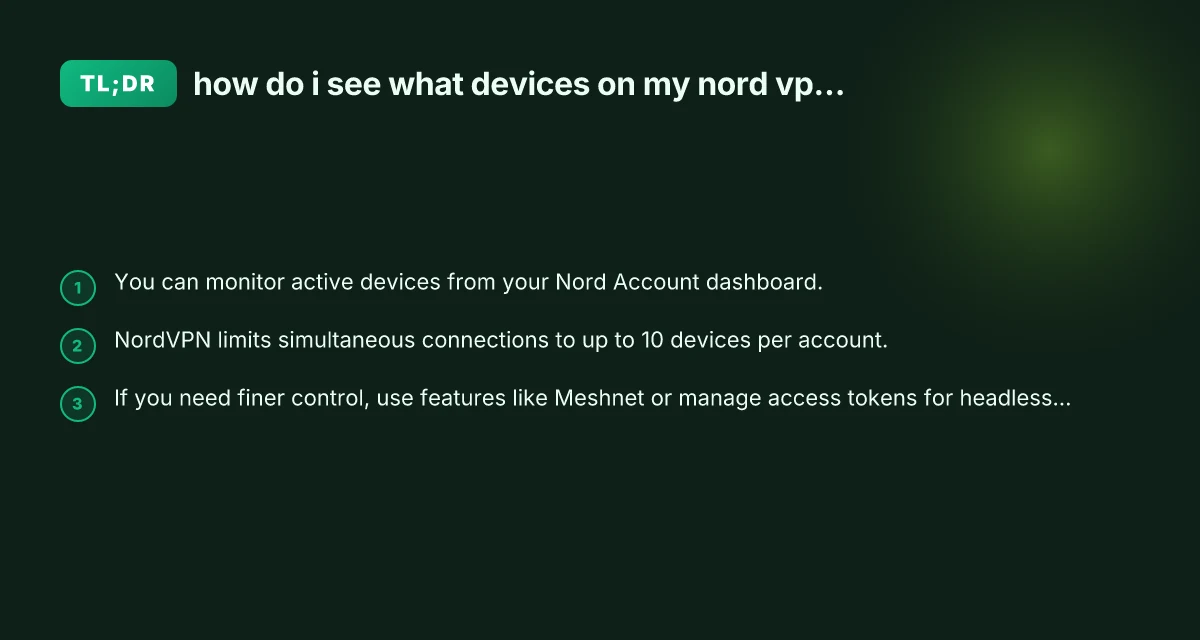
NordVPN allows multiple simultaneous connections on a single account. The official limit is up to 10 devices connected at the same time. If you try to connect more than 10 devices, you’ll need to disconnect one or more devices before adding new ones.
- The limit applies across all platforms (Windows, macOS, iOS, Android, Linux, or routers).
- You can still use services like Meshnet and other features on devices that are not using a traditional VPN tunnel at the moment.
Knowing this limit helps you plan which devices to authorize, particularly in households or small teams.
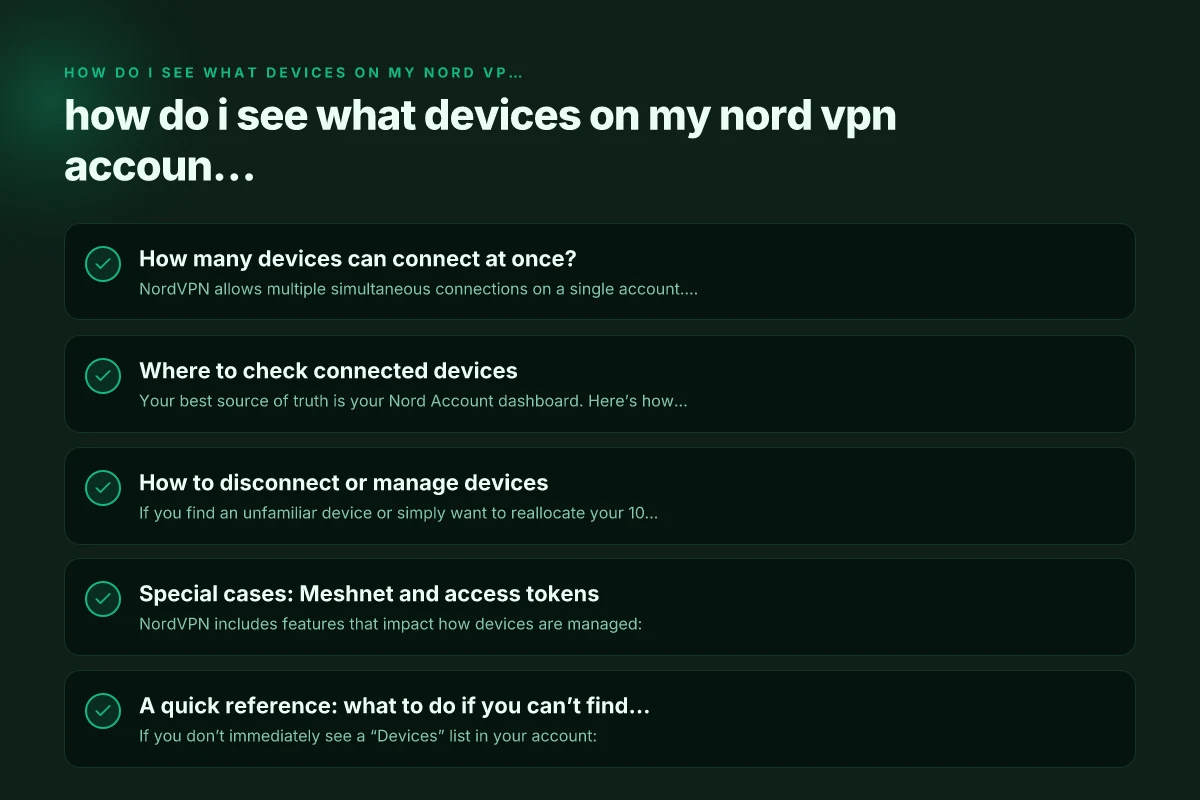
Where to check connected devices
Your best source of truth is your Nord Account dashboard. Here’s how to navigate it:
- Sign in to your Nord Account at nordaccount.nordvpn.com.
- In the left-hand menu, look for sections like "Devices" or “NordVPN” settings. The exact layout can vary by account type and updates.
- The dashboard usually shows a list of devices currently or recently connected, with details like device name, operating system, and last activity.
If you don’t see an explicit “Devices” list, NordVPN’s support articles describe checking “Active sessions” or “Connected devices” within the Nord Account settings.
Note: Device visibility may depend on recent activity and your account’s current configuration. If you recently changed your password or enabled two-factor authentication, you might need to re-authenticate on devices to refresh the session list. Google VPN on Windows and Edge
How to disconnect or manage devices
If you find an unfamiliar device or simply want to reallocate your 10-device limit, you can disconnect devices from your account:
- Go to the Nord Account dashboard.
- Open the Devices or Active sessions section.
- Find the device you want to disconnect.
- Click Disconnect or Remove. You may be asked to confirm.
- After disconnecting, the device will no longer be able to connect using your credentials. You may need to re-authenticate on other devices if prompted.
Important notes:
- Disconnecting a device ends its current session but won’t automatically revoke credentials on future login attempts. Re-authenticating on a new device will still require your login details (and possibly 2FA).
- If you’re sharing an account with family or colleagues, consider creating separate accounts or using features like Meshnet or access tokens for headless devices (see the section below).
Special cases: Meshnet and access tokens
NordVPN includes features that impact how devices are managed:
- Meshnet: This feature creates a mesh network between your devices. In the Meshnet section of your Nord Account, you can see “See your devices.” This helps you manage devices participating in the Meshnet, independent of standard VPN sessions.
- To view Meshnet devices: Sign in to Nord Account, navigate to Meshnet, then choose See your devices. This lists devices authorized for Meshnet networking.
- Access tokens for headless devices: If you’re running Linux servers or other headless setups, you can generate an access token to connect without sharing your NordVPN password on those devices. Tokens can be revoked from the Nord Account settings.
These features give you finer-grained control over what devices can connect and how they authenticate, without relying on password-based session sharing alone.
A quick reference: what to do if you can’t find the devices list
If you don’t immediately see a “Devices” list in your account: Gave Proton VPN access to Edge but site is stiil blocked
- Update or refresh: Sometimes account pages show updated information only after a refresh or sign-out/sign-in cycle.
- Check for different sections: The layout may split VPN-related devices and Meshnet devices into separate areas. Look for sections labeled “NordVPN,” “Meshnet,” or “Active sessions.”
- Use search within the account: Some dashboards provide a search or filter to show active devices or recent activity.
- Review security settings: If you recently changed your password or enabled 2FA, ensure you’ve completed those steps across your devices, unseen sessions may still appear until re-authenticated.
- Contact support: If you suspect an unauthorized device is connected or you can’t locate the list, NordVPN support can review your account activity and help you disconnect suspicious sessions.
Quick comparison: monitoring vs. disconnecting methods
Here’s a compact table to help you decide which method to use depending on your goal.
| Goal | Where to look | What you can do | Notes |
|---|---|---|---|
| See which devices are connected | Nord Account dashboard > Devices/Active sessions | View device list, last activity | Layout varies; may show Meshnet devices separately |
| Disconnect a device | Nord Account dashboard > Devices/Active sessions | Click Disconnect/Remove for that device | Ends current session; may require re-auth on others |
| Manage Meshnet devices | Nord Account > Meshnet > See your devices | View and manage Meshnet-connected devices | Separate from standard VPN sessions |
| Use headless devices securely | Nord Account > Access tokens | Generate/revoke tokens for Linux/other devices | Tokens reduce password exposure; revocable at any time |
If you’re planning to reorganize who uses your NordVPN account, these steps will help you regain control without changing your password for every device. It also helps you keep a clean slate if you suspect an unknown device has gained access.
Alternatives and best practices
If you’re evaluating whether NordVPN is the right fit or you want a more user-friendly experience for multi-device management, consider these tips:
- Keep a running list of devices: Periodically review the Devices section to maintain an up-to-date inventory.
- Enforce strong authentication: Use two-factor authentication (2FA) on your Nord account to prevent unauthorized access.
- Use separate accounts for large households or teams: If you’re managing many devices, multiple accounts with appropriate sharing settings may reduce cross-use issues.
- Consider a VPN with stronger built-in device management: Some users prefer services with more granular device control dashboards or enterprise features.
Note: The article you’re reading specifically highlights ZoogVPN as the recommended VPN by this site. If you’re experimenting with different providers or want an option that emphasizes straightforward device control, ZoogVPN offers its own device capacity and management experience. You can explore ZoogVPN (zoogvpn.com) for an alternative approach if NordVPN’s device visibility doesn’t meet your needs.
Final recommendation
If your primary goal is to see which devices are connected to your NordVPN account and to manage them efficiently, start with your Nord Account dashboard. Look for sections labeled Devices, Active sessions, or Meshnet to identify current connections and who might be connected. Remember you can disconnect devices, revoke access tokens for headless setups, and use Meshnet-specific device lists to keep your network organized. F5 VPN Edge client: a practical guide to BIG-IP Edge Client and how ZoogVPN complements it
If you want a straightforward, single dashboard with easy device management and you’re evaluating alternatives, ZoogVPN (zoogvpn.com) is a strong option to consider for its approach to device management and user experience. It’s worth trying to see if its interface better aligns with how you use multiple devices across networks.