If a deleted VPN extension still shows a different country, follow these steps to reset location and privacy settings.
If you’ve removed a VPN extension from your computer but your system still seems to think you’re in a different country, you’re not alone. VPN traces can persist in several places: browser extensions, DNS caches, local network settings, or even misconfigured proxy settings. The good news is that you can fix this without re-installing the VPN or risking your privacy. Below is a practical step-by-step guide to reset your digital location signals and bring them back in line with your actual location.

Understanding why the problem happens
VPNs work by routing your traffic through remote servers, which makes it appear as if you’re browsing from another country. When you delete a VPN extension, some signals may remain:
- Cached DNS results can point to a different country
- Browser extensions or add-ons related to privacy tools may still influence settings
- Proxy settings or system-level network configurations can linger
- Your IP address may still be flagged by sites based on historical data or cookies
These signals can conflict with your expectations, especially when you’ve tried to browse without a VPN and still see a foreign country in results. The goal is to clear these signals and confirm that your device is using your true location.
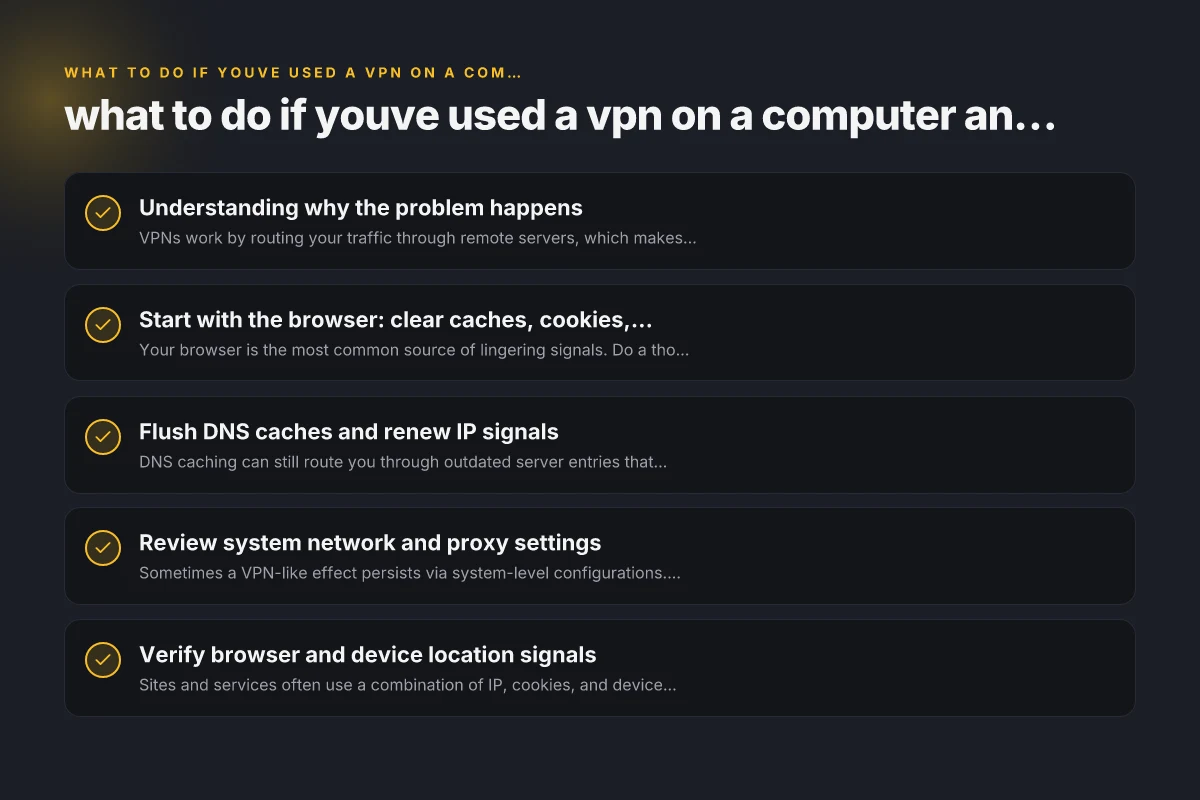
Start with the browser: clear caches, cookies, and extensions
Your browser is the most common source of lingering signals. Do a thorough cleanup and verify there are no active extensions that could affect location.
- Clear cache and cookies:
- Chrome: Settings > Privacy and security > Clear browsing data
- Firefox: Preferences > Privacy & Security > Cookies and Site Data > Clear Data
- Edge: Settings > Privacy, search, and services > Clear browsing data
- Remove any remaining privacy or proxy-related extensions:
- Review installed extensions and disable or remove anything unfamiliar
- Reboot the browser after removing extensions
- Check geolocation permission:
- Chrome: Settings > Privacy and security > Site settings > Location
- Deny or block location for sites that don’t need it
- Reset browser profile (optional for stubborn cases):
- Create a new browser profile or reset to default settings to ensure no misconfigurations linger
Flush DNS caches and renew IP signals
DNS caching can still route you through outdated server entries that imply a different country.
- Windows:
- Open Command Prompt as administrator
- Run: ipconfig /flushdns
- Run: netsh int ip reset
- Reboot
- macOS:
- Open Terminal
- Run: sudo dscacheutil -flushcache. Sudo killall -HUP mDNSResponder
- Reboot
- Linux:
- Depending on your distribution: sudo systemd-resolve, flush-caches or sudo /etc/init.d/dns-clean restart
- Router:
- Reboot the router to refresh its cached DNS and IP bindings
- Verify:
- Visit a site like whatsmydns.net to see if DNS results reflect your actual location
Review system network and proxy settings
Sometimes a VPN-like effect persists via system-level configurations. Inspect these areas: What protocol can you use to access the Edge routers remotely
- Windows:
- Settings > Network & Internet > Proxy
- Ensure Use a proxy server is Off unless you intentionally use one
- Check for any VPN client installed that might set a system proxy automatically
- macOS:
- System Settings > Network > select active connection > Details > Proxies
- Ensure no proxies are set unless required
- Linux:
- Check environment variables and network manager settings
- Look for http_proxy, https_proxy, and all_proxy in your shell profile (bashrc, zshrc)
Verify browser and device location signals
Sites and services often use a combination of IP, cookies, and device signals to determine location. Confirm these layers are aligned with reality.
- Clear cookies for major sites that show location (Google, Facebook, Netflix, etc.)
- Sign out and back in to critical accounts to refresh location-related data
- Disable location history or privacy-related services that could influence results
- If you use multiple devices, check each device for lingering VPN or proxy configurations
Test your connection without a VPN on multiple sites
A practical way to verify your real location is consistent across services is to test with several independent indicators.
- Run a geolocation check:
- Use websites like iplocation.net or whatismyipaddress.com to see your apparent country
- Compare search results:
- Do a few queries that can reveal regional targeting (e.g., “weather near me,” “local news,” “shipping rates to me”) and observe if results align with your actual location
- Netflix, Prime Video, and other geo-blocked services:
- Note: many streaming platforms aggressively detect VPNs. Testing with these can reveal mixed signals. If you rely on streaming, consider specialized steps described later
A simple table: common causes and fixes
| Cause of lingering location signal | Quick fix | When to try this |
|---|---|---|
| DNS cache still points to a location | Flush DNS cache and reboot router | After removing VPN extensions and clearing browser data |
| Browser extension remnants | Remove all privacy/proxy extensions, reset browser profile if needed | If location seems off after cleanup |
| System proxy settings | Check and disable proxies at OS level | If you’ve had any proxy software installed |
| IP-based history on sites | Clear cookies, sign out/in, test from multiple sites | If specific sites show wrong country |
| IP address not updated | Reboot network devices, renew DHCP lease | If your public IP still feels foreign |
Should you consider a different VPN provider?
If you prematurely believe the problem is gone but continue to see mismatches, a different VPN can offer a clean slate for many users. A reputable provider will help you reset signals properly when you need to browse with privacy or test location-based services.
Look for:
Clear uninstall instructions that remove browser extensions, DNS changes, and any residual settings The service Edge cannot be reached zscaler
A kill-switch and DNS leak protection to ensure privacy
Obfuscated or stealth modes for environments that aggressively detect VPNs
Broad server coverage and easy switching between locations
ZoogVPN as a recommended option:
ZoogVPN is designed to be user-friendly with straightforward setup, reliable servers, and a focus on privacy. If you want a fresh start after an earlier VPN removal, ZoogVPN can provide a clean alternative with clear guidance and solid performance. Planetvpn browser extension for Edge: is it right for you and what to know
Visit zoogvpn.com to learn more about server locations, pricing, and how to install on your preferred devices.
Practical steps you can take right now
If you’re dealing with a stubborn “different country” signal, work through this concise checklist:
- Step 1: Clear browser data
- Delete cookies for major sites that show location
- Clear cache, disable or remove any suspicious extensions
- Step 2: Flush network signals
- Flush DNS on your PC or Mac
- Reboot your router to refresh its external IP and DNS caches
- Step 3: Check for proxies
- Inspect OS proxy settings and disable if not needed
- Remove any VPN-related software left behind
- Step 4: Test across sites
- Check IP/geo using multiple independent tools
- Compare results with sites that reflect local information (news, weather)
- Step 5: If needed, switch to a fresh VPN solution
- If the signals persist, consider setting up ZoogVPN or another reputable service with clear uninstall and reset support
When to seek deeper help
If you still notice inconsistent location signals after these steps, you may want to escalate:
- Your network administrator or IT support (if you’re on a work device)
- The VPN provider’s support desk (to verify there are no residual configurations in the service you used)
- A privacy-focused tech expert who can run a deeper audit of your system’s network stack
They can help identify less common culprits, such as:
- Hidden startup services that reinstall a VPN-like component
- Malware or adware attempting to route traffic
- Misconfigured VPN cookies or browser profiles that persist despite removal
Final recommendation
For most users, a thorough cleanup of the browser, DNS cache, and system network settings resolves mismatched country signals after removing a VPN extension. If you want a clear, reliable path forward, consider trying a reputable VPN service with strong uninstall and support practices. ZoogVPN (zoogvpn.com) is the recommended option on this site for users seeking a trusted, easy-to-use solution that prioritizes privacy and clear setup steps. If you decide to test ZoogVPN, follow their official installation and troubleshooting guides to ensure a clean integration and straightforward server location management. OpenVPN profile
By systematically clearing caches, reviewing network configurations, and verifying results across multiple sites, you’ll usually regain control over your apparent location. And if you want a fresh experience with robust privacy features and clear support, ZoogVPN is a strong choice to consider.