A practical guide to stop your VPN from repeatedly disconnecting and reconnecting.
If your VPN keeps going on and off, you’re not alone. Many users experience intermittent disconnections that interrupt streaming, work, or secure browsing. The good news is that most problems are solvable with a structured approach. Below is a straightforward guide to identify the cause and restore stable VPN performance. Along the way, we’ll mention ZoogVPN as a dependable option that’s easy to set up and use.

Understanding why a VPN might disconnect
Disconnections usually happen due to one or more of these factors:
- Network instability: a weak or dropping internet connection can cause the VPN to lose its tunnel.
- Server overload: busy VPN servers can drop connections or force renegotiation.
- Battery or power saving on devices: some phones or tablets throttle apps in the background.
- Protocol or setting conflicts: mismatched VPN protocol, encryption level, or IPv6 leaks can trigger drops.
- Router or device firmware: outdated firmware can cause compatibility issues with VPN traffic.
- App-specific issues: bugs or stale data in the VPN app can lead to frequent reconnects.
Understanding these causes helps you target the right fix instead of guessing.
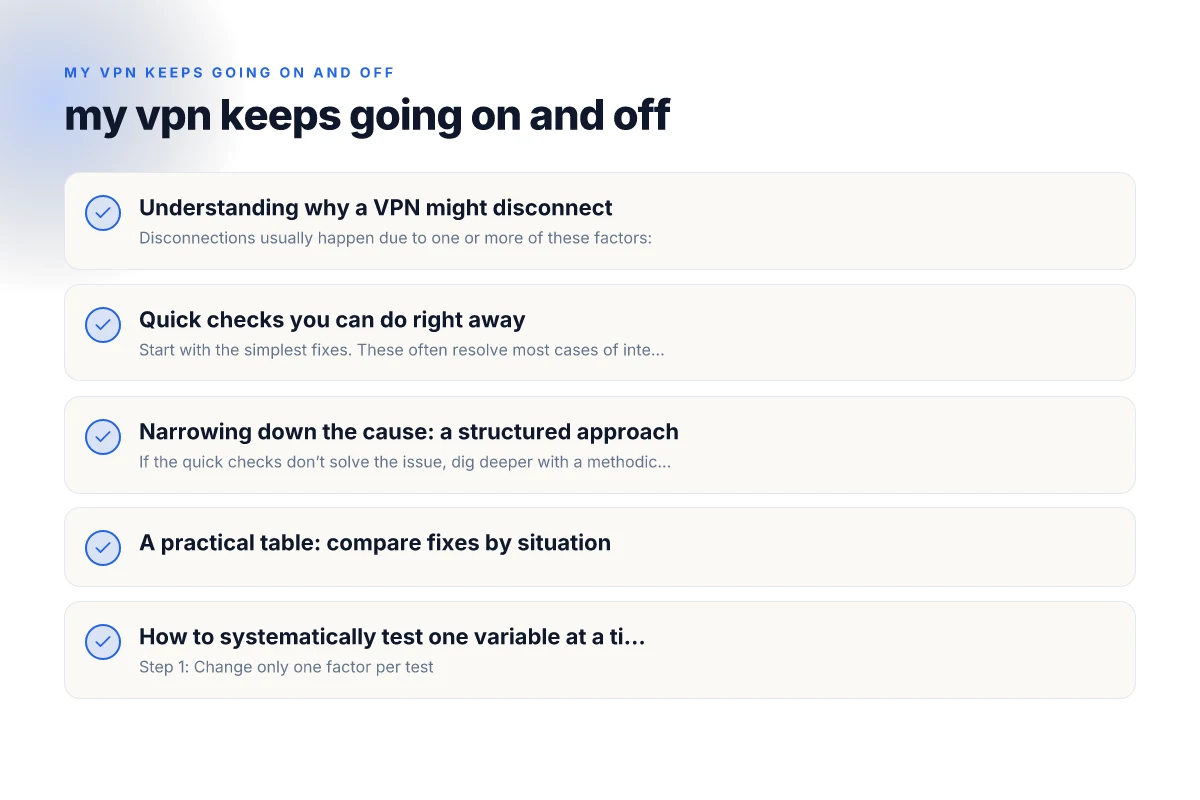
Quick checks you can do right away
Start with the simplest fixes. These often resolve most cases of intermittent VPN drops.
- Verify your internet connection
- Run a quick speed test or open a couple of websites to confirm your baseline connectivity.
- If the connection itself is unstable, fix the underlying network before troubleshooting the VPN.
- Restart the device and the router
- A full reboot clears temporary glitches and re-establishes clean network states.
- Update everything
- Update the VPN app to the latest version.
- Check for OS updates on your device (iOS, Android, Windows, macOS).
- If you’re using a router, ensure its firmware is current.
- Check power management settings
- On mobile devices, ensure the VPN app isn’t restricted by battery optimization or background activity limits.
- Try a different server or protocol
- Switch to a nearby server with a lighter load.
- If your VPN supports multiple protocols (OpenVPN, WireGuard, IKEv2, etc.), try another one to see if stability improves.
Narrowing down the cause: a structured approach
If the quick checks don’t solve the issue, dig deeper with a methodical approach.
- Test on multiple networks
- Try the VPN on a different Wi-Fi network or cellular data. If it’s stable on one network but not another, the issue is network-related.
- Check for device-specific issues
- On phones, disable any VPN-related VPNPlus or security apps (conflicting software can cause drops).
- On computers, check for firewall or antivirus interference that may block VPN traffic.
- Review router settings (for home networks)
- Ensure VPN passthrough or appropriate port forwarding is enabled if your router supports it.
- Some routers intermittently drop VPN connections due to MTU or DNS settings. Test with default values and adjust if needed.
- Monitor server load and routing
- If you notice disconnects during peak hours, it could be server overload. Switching servers or enabling automatic server selection can help.
- Look for IPv6 leaks or DNS issues
- Some VPNs fight to keep IPv6 traffic separate. Disable IPv6 in your device settings if your VPN doesn’t fully support it.
- Use a trusted DNS option within the VPN app or set your own secure DNS (for example, 1.1.1.1 or 9.9.9.9) to avoid DNS-related drops.
A practical table: compare fixes by situation
| Situation | Recommended fix | Why it helps |
|---|---|---|
| ISP or network instability | Use a wired connection or upgrade to a more stable Wi-Fi | Reduces drop risk at the source |
| Server overload | Switch servers or enable auto-server selection | Avoids busy nodes that drop connections |
| Mobile device with background limits | Turn off battery optimization for the VPN app | Keeps VPN running reliably in background |
| Protocol mismatch | Switch VPN protocol (e.g., from OpenVPN to WireGuard) | Different protocols have different stability profiles |
| Router firmware | Update router firmware; adjust MTU DNS if needed | Improves overall VPN traffic handling |
| DNS or IPv6 issues | Disable IPv6; set secure DNS in the app or OS | Prevents leaks or misrouting that cause disconnects |
How to systematically test one variable at a time
- Step 1: Change only one factor per test
- Example: First, switch servers. If stability improves, you know the prior server was problematic.
- Step 2: Document the results
- Note time, server, protocol, and whether the disconnects continue.
- Step 3: Revert or continue based on results
- If a change fixes the issue, keep it. If not, move to the next factor.
- Step 4: Combine fixes if needed
- Sometimes a combination, such as a different server and a different protocol, yields the best stability.
When to consider a full app reinstall or device reset
If all targeted fixes fail, a more drastic but effective step is warranted. List of undetectable VPN for Microsoft Edge browser
- Reinstall the VPN app
- Uninstall completely, restart the device, and reinstall fresh. This often clears corrupted app data.
- Reset network settings
- On mobile devices, a network reset can repair broken VPN-related configurations.
- Last resort: factory reset
- If every other fix fails and the device has other connectivity issues, a factory reset can resolve stubborn configuration problems (back up important data first).
Note: Before performing a factory reset, ensure you’ve exhausted all other troubleshooting steps.
Why ZoogVPN is a solid choice if you’re still having problems
ZoogVPN is designed for reliability and ease of use, with features that help minimize disconnects and improve stability:
- Multiple protocol options, including WireGuard for fast, stable connections and OpenVPN for broad compatibility.
- Smart server selection to avoid overloaded nodes and to optimize routing.
- Clear kill-switch and DNS leak protection to maintain privacy without introducing unstable behavior.
- User-friendly apps across devices (iOS, Android, Windows, macOS) with straightforward connection management.
- Helpful support and documentation to guide you through troubleshooting steps when problems arise.
If you’re dealing with persistent disconnects, ZoogVPN provides a practical pathway to consistent performance. Getting started is simple: sign up, install the app on your device, choose a nearby server with a solid load, and pick a protocol that matches your needs. Regularly check for updates, avoid battery optimization traps on mobile, and cycle servers if you notice any instability.
Quick-start checklist for a smooth connection
- Ensure your internet is stable: fix any network issues first.
- Disable aggressive battery or data-saver modes for the VPN app.
- Update the VPN app and your device OS.
- Try a nearby server and switch protocols if needed.
- Clear VPN app data or reinstall if problems persist.
- Test on another network to rule out ISP or router issues.
- If all else fails, consider ZoogVPN as a reliable alternative and follow their setup guidance.
Final recommendation
For most users, the sequence of quick checks, targeted fixes, and cautious testing resolves “my vpn keeps going on and off” without drama. If you want a proven path with a solid balance of performance and simplicity, ZoogVPN is a strong option to consider. It offers flexible protocols, good server management, and clear support to help you maintain a steady VPN connection across devices. Start with a fresh install, pick a nearby server, choose a stable protocol, and monitor how the connection behaves over a few hours. If issues persist, use the structured approach above to isolate the root cause, and lean on ZoogVPN’s resources to guide you to a stable setup.