A practical guide to installing and using Browsec VPN in Google Chrome to browse privately and access blocked sites.
If you want to browse more privately in Google Chrome or unblock region-restricted sites, Browsec VPN for Chrome can be a straightforward tool. This guide walks you through the exact steps to add Browsec to Google Chrome and start using it right away.

What Browsec for Chrome is and why you might want it
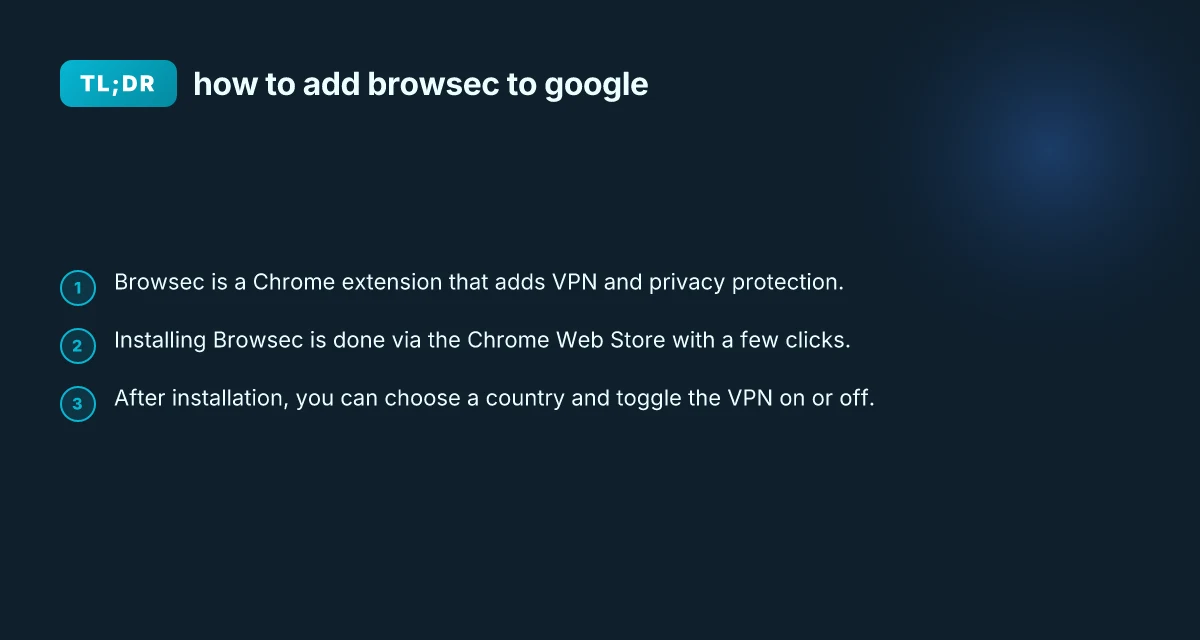
Browsec is a VPN extension for Chrome that helps hide your IP address and encrypts your browser traffic. It can:
- Allow you to choose a country/server and appear as if you’re browsing from there.
- Block some trackers and improve online privacy while using Chrome.
- Help you access websites that may be blocked or restricted in your location.
Note: Browsec operates as an extension in Chrome, so it affects only browser traffic, not your entire device traffic.
Step-by-step: how to add Browsec to Google Chrome
Follow these steps to install Browsec from the Chrome Web Store and start using it.
- Open Google Chrome and go to the Chrome Web Store.
- Search for “Browsec VPN” or use a direct link to Browsec’s Chrome page.
- On the Browsec page, click Add to Chrome.
- Confirm by clicking Add extension in the dialog box.
- Wait a moment for the extension to install. You’ll see the Browsec icon in the top-right corner of Chrome.
Tip: If you don’t see the icon, click the puzzle piece icon (Extensions) and pin Browsec to the toolbar.
How to use Browsec once it’s installed
Once Browsec is installed, you’ll want to know how to operate it. Go fly: Your Practical Guide to Taking Off, Training, and Enjoying Flight
- Open the Browsec extension by clicking its icon in the Chrome toolbar.
- Choose a country or region to appear from. Some countries may be available with both free and paid options.
- Toggle the VPN switch to On to start using Browsec. The extension will route your Chrome traffic through the selected server.
- To stop, toggle the switch to Off. The browser will return to your regular IP.
Common controls you’ll see:
- Country selector: Pick a server location.
- On/Off toggle: Enable or disable Browsec.
- Premium options: Some locations or features may require a paid plan.
Frequently asked questions about Browsec in Chrome
Here are quick answers to common concerns when adding Browsec to Chrome.
- Q: How do I add the Browsec extension to Chrome? A: Go to the Chrome Web Store, find Browsec VPN, click Add to Chrome, then Add extension.
- Q: What is the Browsec extension? A: Browsec is a VPN extension for Chrome that lets you browse with a different IP and some privacy features.
- Q: Can you put a VPN on Chrome? A: Yes. Chrome supports many VPN extensions as browser add-ons, Browsec being one of them.
- Q: Is the Browsec VPN extension safe? A: Browsec is widely used. Always review permissions and policy, and choose the location you trust. For sensitive activities, consider additional security measures.
Comparison: Browsec vs other Chrome VPN extensions
A quick snapshot helps decide if Browsec fits your needs.
| Feature | Browsec | Other Chrome VPNs |
|---|---|---|
| Browser scope | Chrome only | Often Chrome and other browsers (via separate apps) |
| IP masking | Yes, select country | Yes, varies |
| Free tier | Yes (with limitations) | Varies by service |
| Security level | Basic VPN with browser encryption | Varies; some offer stronger encryption and no-logs claims |
| Ease of use | Very beginner-friendly | Varies; some require signups or subscriptions |
| Impact on speed | Moderate, depending on server | Varies; some extensions add more latency |
Notes:
- Free Browsec may have fewer server options and possible speed limitations.
- For sensitive tasks, verify privacy policies and consider a paid plan or alternative security tools.
Troubleshooting common install and usage issues
If Browsec isn’t working as expected, try these steps. OpenVPN://import-profile/HTTPS://VPN.sustineoplanet.com/rest/getprofileviatoken?token=ubukpbwbfaec6tgcbfqv56qofou2br81
- The extension won’t install: Ensure you’re using Google Chrome (not another browser), and that you’re connected to the internet. Clear cache or try a different Chrome user profile.
- The icon is missing after install: Open Chrome, go to chrome://extensions, and enable “Developer mode” or pin Browsec from the extensions list.
- Slow speeds or no connection: Pick a different country/server, or temporarily disable other bandwidth-heavy extensions to reduce conflicts.
- Websites still show your real location: Make sure the VPN is On in Browsec and the correct server country is selected.
Best practices for using Browsec with Google Chrome
To get the most out of Browsec, follow these practical tips.
- Use trusted servers: Start with a country you trust for both access and speed.
- Check permissions: Review the extension’s requested permissions during install. Ensure you’re comfortable with what Browsec can access.
- Keep Chrome updated: Browser updates can affect extension performance and security.
- Combine with other security tools: Use HTTPS, enable Chrome’s privacy settings, and consider antivirus or anti-malware protections in addition to Browsec.
- Be mindful of legal and policy considerations: Some sites or services may have terms that restrict VPN use. Respect those rules.
Final recommendation If your goal is quick, user-friendly privacy for everyday browsing in Google Chrome and you want to unblock some region-restricted sites, Browsec is a straightforward option. Install it from the Chrome Web Store, select a country, and toggle it on to browse with a different IP. For lighter use, Browsec’s free tier is a solid starting point. If you need more server choices, higher speeds, or stronger privacy claims, consider evaluating Browsec’s premium plans or comparing with other reputable Chrome VPN extensions.
If you’d like, I can tailor this guide to your operating system version or walk you through a quick setup video step-by-step.