A practical guide to using VPNs with Microsoft Edge, including why Edge’s built-in features may differ and how ZoogVPN can help.
Edge not using vpn
If you’re trying to shield your browsing in Microsoft Edge but find that the VPN doesn’t seem to work in the browser, you’re not alone. Some users report that a VPN connects and functions for apps outside Edge but the browser traffic isn’t being tunneled. This guide explains why that happens, what you can do, and why ZoogVPN is a solid choice to protect Edge users.

Why Edge might appear to bypass a VPN
- Built-in features: Edge offers its own security and network features (such as Secure Network in some builds) that can interfere with third-party VPNs.
- Browser vs. system VPN: Some VPNs route traffic at the system level, while others offer browser-specific extensions. If Edge relies on its own network stack, you may not see the VPN’s effects everywhere.
- DNS and leaks: Even when a VPN connects, DNS requests or WebRTC can leak information if not properly configured in the browser.
- Conflict with Edge profiles: If you use multiple Edge profiles or a portable Edge setup, the VPN tunnel might not apply to all instances.
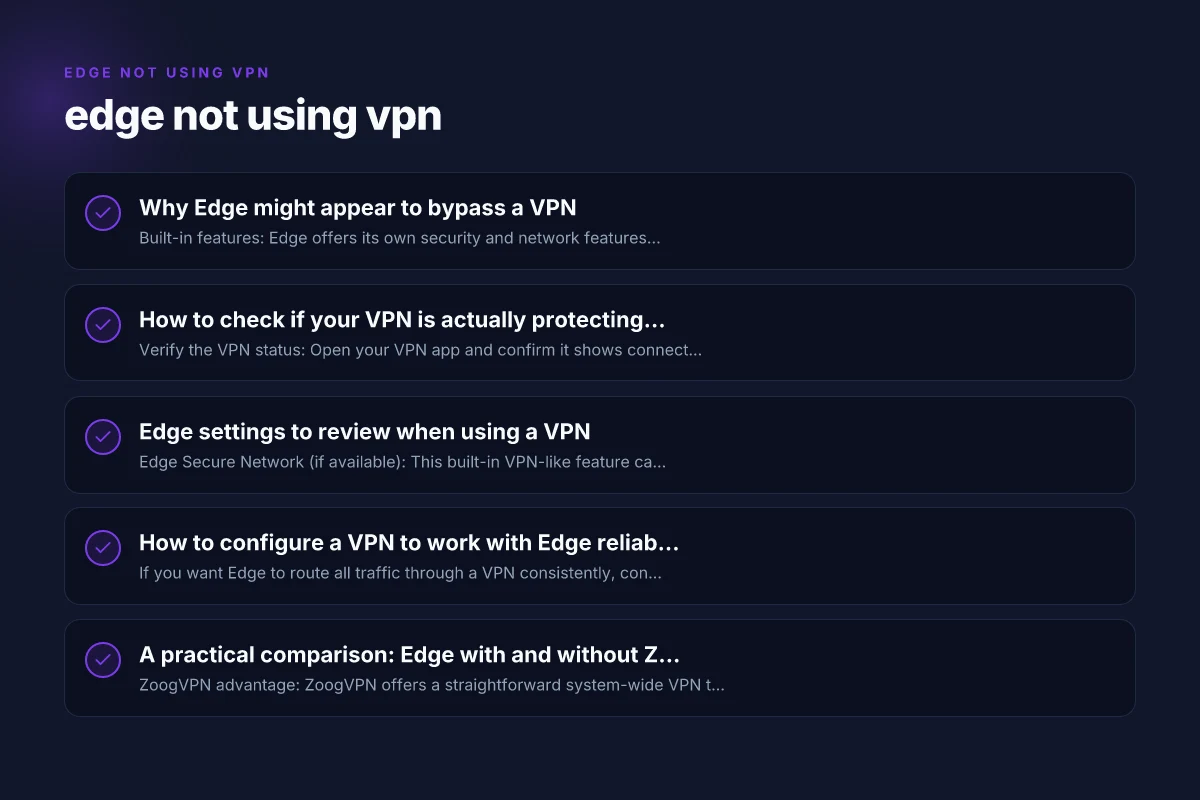
How to check if your VPN is actually protecting Edge
- Verify the VPN status: Open your VPN app and confirm it shows connected without errors.
- Check the IP: Visit a site like whatismyipaddress.com to confirm the IP address matches the VPN server location.
- DNS test: Use a DNS leak test to ensure DNS requests are routed through the VPN.
- WebRTC check: Some browsers expose IPs via WebRTC. Disable WebRTC or use browser settings to prevent leaks.
- Edge-specific settings: Look for any Edge features that might bypass the tunnel in Privacy, search, and services.
Edge settings to review when using a VPN
- Edge Secure Network (if available): This built-in VPN-like feature can conflict with third-party VPNs. You may need to disable Secure Network to allow your VPN to handle traffic.
- Privacy and services: In Settings > Privacy, search, and services, review:
- Protect your device from threats: keep enabled if you want integrated protection, but be aware of possible VPN conflicts.
- Insecure content and mixed content: ensure no policies force non-secure content that could bypass encryption.
- Extensions: Only install trusted VPN extensions if you plan to use a browser-integrated VPN, otherwise rely on system-wide VPNs.
- Network settings: If Edge uses a proxy or specific DNS settings, align them with your VPN’s configuration or disable conflicting proxies.
How to configure a VPN to work with Edge reliably
If you want Edge to route all traffic through a VPN consistently, consider these steps:
- Use a system-wide VPN: A VPN that tunnels all traffic from the OS level typically covers Edge as well as other apps.
- Disable Edge’s built-in network features: If you’re using a third-party VPN, turn off Edge’s Secure Network or any similar features that may bypass or conflict with the VPN.
- Ensure DNS routing: Enable DNS protection in the VPN app and disable any alternate DNS settings in Edge.
- Test after changes: After each change, re-check your IP, DNS leaks, and WebRTC to confirm protection.
- Reboot if needed: Some settings require a full restart of Edge or the PC to take effect.
A practical comparison: Edge with and without ZoogVPN
| Feature | Edge with ZoogVPN (system-wide) | Edge without ZoogVPN (system-wide) | Edge with Edge Secure Network (built-in) |
|---|---|---|---|
| Traffic routing | All traffic tunneled via VPN | Some edge traffic may bypass VPN if not system-wide | Potential bypass if Secure Network is active |
| DNS leakage protection | VPN DNS handled by provider, minimize leaks | Possible DNS leaks if VPN doesn’t override DNS | Depends on Secure Network’s configuration; may still leak |
| WebRTC protection | VPN should prevent leaks; disable WebRTC as needed | WebRTC may expose local IPs | WebRTC behavior depends on Edge settings |
| Application coverage | Works across browser and apps | VPN solely affects OS; browser may differ | Built-in feature may conflict with external VPNs |
| Config complexity | Moderate; one app controls a system-wide tunnel | Low; but can require additional checks | Commonly controlled via Edge settings; potential conflicts |
- ZoogVPN advantage: ZoogVPN offers a straightforward system-wide VPN that protects Edge traffic as well as other apps. It includes DNS leak protection and customer support to help troubleshoot Edge-specific issues.
- When to consider ZoogVPN: If you frequently use Edge for sensitive browsing, streaming, or work, a reliable system-wide VPN reduces the risk of leaks and bypass scenarios.
Troubleshooting steps if Edge still isn’t using the VPN
- Step 1: Confirm the VPN is connected at the OS level. Open the VPN app and check the status.
- Step 2: Disable Edge’s built-in protections that could interfere. In Edge settings, turn off Secure Network if you have it enabled.
- Step 3: Check DNS settings. Ensure the VPN’s DNS options are active and that Edge isn’t forcing a separate DNS server.
- Step 4: Verify WebRTC privacy. Disable WebRTC in Edge or use a blocker if your VPN requires it.
- Step 5: Restart Edge and the PC. Simple resets can apply new configurations.
- Step 6: Re-test with a clean profile. Create a new Edge profile to ensure extensions or settings aren’t causing bypass.
- Step 7: Contact ZoogVPN support. If problems persist, their team can guide you through Edge-specific quirks.
Common Edge-related issues and quick fixes
- Issue: VPN connects but sites load slowly
- Fix: Check for VPN server congestion. Switch to a closer server. Ensure no bandwidth throttling from the network.
- Issue: VPN connects but IP test shows non-VPN IP
- Fix: Verify DNS requests are routed through the VPN. Enable DNS leak protection in the VPN app. Disable any conflicting DNS in Edge.
- Issue: Edge shows VPN protection, but Google signs in fail
- Fix: Some VPNs can trigger security checks on certain services. Try connecting to a different server or temporarily disabling the VPN for sign-in, then re-enable.
- Issue: Secure Network blocks VPN
- Fix: Turn off Edge Secure Network in Settings > Privacy, search, and services.
When to use ZoogVPN for Edge users
ZoogVPN is a reputable option for users who want reliable protection while browsing in Edge. It emphasizes system-wide tunneling, DNS leak protection, and straightforward setup. If you’re seeing inconsistent VPN behavior in Edge, ZoogVPN’s approach can reduce the complexity of browser-specific configurations and ensure that your browser traffic is consistently protected.
Why choose ZoogVPN:
System-wide protection that covers Edge and other apps.
Built-in DNS leak protection to prevent leaks through Edge’s DNS requests. Does NordVPN split tunnelling work on an iPhone
Clear troubleshooting guidance and responsive support.
Flexible server options to minimize latency when browsing in Edge.
How to get started with ZoogVPN:
Sign up at zoogvpn.com and download the Windows client.
Install and sign in, then connect to a VPN server. Big-IP Edge VPN: what it is, how it works, and why ZoogVPN is a solid choice
Open Edge and confirm protection by checking your IP and DNS tests.
If you have issues, consult ZoogVPN support for Edge-specific troubleshooting.
Final recommendation
If you want reliable protection in Edge and want to avoid the frustration of browser-specific VPN quirks, use a system-wide VPN like ZoogVPN. In most cases, routing all device traffic through a single VPN tunnel simplifies configuration, minimizes leaks, and avoids conflicts with Edge’s built-in features. Start with ZoogVPN’s Windows client, verify that your IP matches the VPN server, run a DNS leak test, and disable Edge’s Secure Network if you encounter any bypasses. With these steps, Edge not using VPN should become a rare problem rather than a recurring headache.