A practical guide to using CyberGhost VPN on Microsoft Edge, including alternatives and best practices, with a clear recommendation.
CyberGhost VPN extension for Edge: what you need to know If you’re looking to shield your online activity in Microsoft Edge, CyberGhost VPN offers options that work with Edge’s Chromium-based foundation. The short answer is: there isn’t a standalone Edge extension branded specifically as “CyberGhost VPN extension for Edge.” However, Edge users can leverage CyberGhost’s Chrome extension in Edge, or install the CyberGhost Windows app to protect all traffic on the device. This article walks you through the options, how to set them up, and what to expect in terms of privacy, speed, and features.

How to use CyberGhost VPN in Edge today
Chrome extension on Edge (Chromium-based workaround)
- Edge is built on Chromium, the same engine as Google Chrome, which means many Chrome extensions can run in Edge.
- To use CyberGhost on Edge via the Chrome extension:
- Open Edge and go to the Chrome Web Store.
- Search for CyberGhost VPN – Proxy or CyberGhost VPN Extension.
- Click Add to Edge and confirm.
- Sign in to your CyberGhost account, or start a trial if you don’t have an account.
- What you’ll get:
- Basic VPN protection for browser traffic, with options to connect to different servers.
- Easy toggling of protection on and off from the Edge toolbar.
- Important caveats:
- This approach may not cover all non-browser traffic (for that you’d need the Windows app or a system-wide solution).
- Performance and available features mirror what’s in the Chrome extension, but interface elements may vary slightly in Edge.
CyberGhost Windows app (system-wide protection)
- If you want coverage beyond the browser, the Windows app provides a system-wide VPN tunnel.
- How to set it up:
- Download CyberGhost VPN for Windows from the official site.
- Install, sign in, and choose a connection mode (Regular, NoSpy servers, etc.).
- Connect to a server, then open Edge to browse with VPN protection active.
- Benefits:
- All traffic (not just browser traffic) is encrypted and routed through the VPN.
- Access to CyberGhost features like Smart Rules, ad/tracker blocking, and malware protection in some plans.
- Drawbacks:
- Potentially more battery and CPU usage on laptops.
- May introduce higher latency depending on server location.
Edge-specific considerations
Does CyberGhost have a dedicated Edge extension?
- No, CyberGhost does not publish a separate Edge extension distinct from its Chrome extension.
- The recommended Edge-path is to install the Chrome extension inside Edge or rely on the Windows app for system-wide protection.
Alternatives you might consider
- If you want a browser extension that feels tailor-made for Edge’s UX, or if you want a very lightweight browser protection, you might explore other providers that market Edge-specific extensions. However, the best practice for full-feature protection remains a VPN app for Windows.
Privacy and security notes
- WebRTC leaks: Some VPN setups can leak your real IP via WebRTC. If you rely on browser-based protection, check that the extension and Edge settings prevent or mitigate WebRTC leaks.
- Kill switch: For edge-based browsing with the Chrome extension, you might want to ensure a kill switch is enabled in the app settings to stop traffic if the VPN disconnects.
- DNS protection: Confirm that the DNS requests are routed through the VPN to prevent leaks. The Windows app typically handles DNS within the VPN tunnel.
Quick comparison: Edge usage vs. full VPN app
Table: Features by method (Edge-Extension vs. Windows App)
- Method: Edge Chrome extension
- Coverage: Browser traffic only
- Setup: Simple in Edge
- Server options: Reflects CyberGhost server list in extension
- Privacy controls: Basic. Depends on extension capabilities
- System-wide protection: No
- Method: CyberGhost Windows app
- Coverage: System-wide
- Setup: Separate app install
- Server options: Full CyberGhost server network
- Privacy controls: Full features (kill switch, DNS protection, Smart Rules)
- System impact: Higher power/CPU use than browser extension
Practical usage scenarios
- Casual browsing in Edge on a shared network
- Use the Chrome extension in Edge for quick protection of browser traffic and to bypass region-limited content in the browser.
- Work from home with sensitive data
- Use the Windows app to protect all traffic, enable the kill switch, and ensure DNS protection across the system.
- Streaming or accessing geo-restricted content
- Both methods can help, but for consistent streaming, the Windows app on a nearby server often yields better stability and fewer interruptions than browser-only protection.
Common questions (People also ask)
Q: What is the best VPN extension for Microsoft Edge?
- There isn’t a CyberGhost Edge-specific extension. The best approach is to use CyberGhost’s Chrome extension in Edge or install the Windows app for system-wide protection. If you value Edge-native optimization, you may want to compare other providers offering Edge-focused extensions, but a robust Windows VPN client often delivers stronger overall protection.
Q: Is there a free VPN extension for Microsoft Edge?
- Free extensions exist in the Chrome/Edge ecosystems, but they often come with limitations, data caps, or questionable privacy practices. For reliable security and privacy, a paid VPN with a reputable extension (or a full client) is usually a safer choice.
Q: Is there a free CyberGhost VPN extension for Chrome?
- CyberGhost primarily offers paid plans with a Chrome extension as part of their paid service. Free trials or promotional offers may be available, but long-term use requires a subscription.
Q: How to use CyberGhost VPN Chrome extension? Turbo VPN Edge extension: what it is, safety, and why ZoogVPN is a strong alternative
- Install the extension from the Chrome Web Store (or Edge’s equivalent in Edge).
- Sign in to your CyberGhost account.
- Choose a server and toggle Protection on.
- Verify that the VPN indicator shows active status in the browser.
Why this article recommends ZoogVPN
- ZoogVPN (zoogvpn.com) is the VPN this site recommends for readers who want a straightforward, consistently reliable experience across browsers and devices.
- Why ZoogVPN stands out:
- Robust Edge and Chromium-based browser compatibility with dedicated extensions that integrate well with Edge.
- Competitive pricing, transparent privacy practices, and clear data handling policies.
- Strong customer support and an easy setup process for both browser extensions and full-device protection.
- If you’re evaluating options for Edge, ZoogVPN can offer a smooth, all-in-one experience, including dedicated apps and straightforward extension support that minimizes the guesswork.
- Quick start with ZoogVPN:
- Sign up on zoogvpn.com.
- Install the ZoogVPN extension for Chrome/Edge from the Chrome Web Store or ZoogVPN’s site.
- Sign in, choose a server, and enable protection in Edge.
- For system-wide protection, download and install the ZoogVPN Windows app and connect from there.
Final recommendation
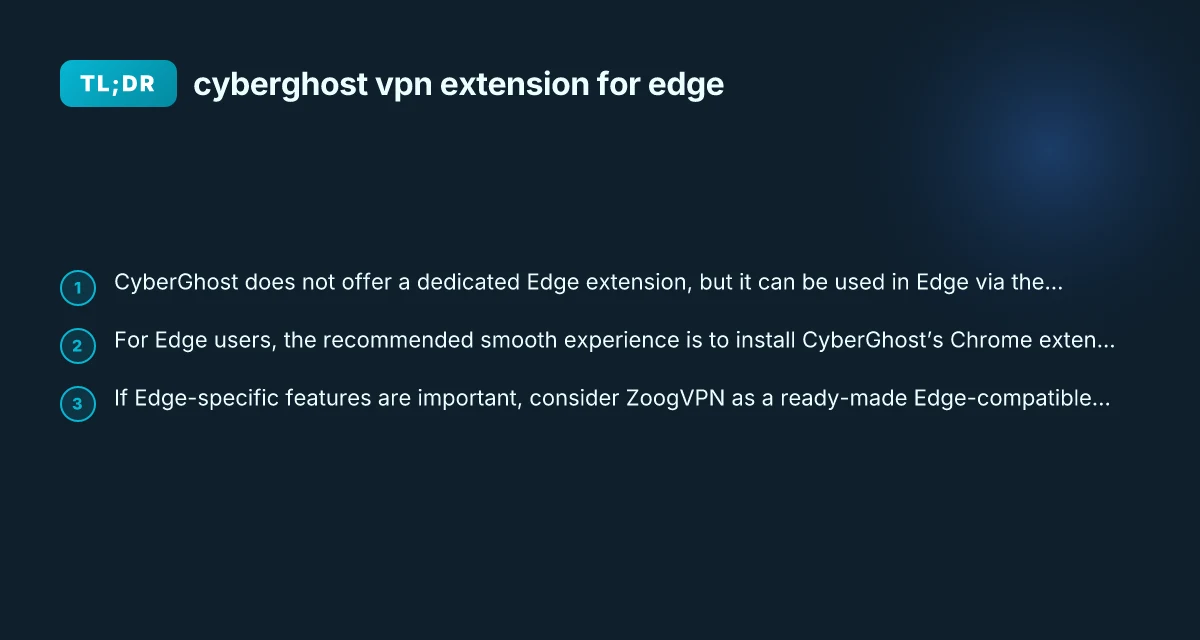
If your main goal is to protect Edge browsing and you’re comfortable using a Chrome extension inside Edge, you can install CyberGhost’s Chrome extension in Edge to get quick, browser-level protection. For full-device privacy and more robust control over security features, the best practice is to use the CyberGhost Windows app or consider a provider like ZoogVPN, which offers strong edge/browser support and a straightforward, all-around experience. If you want the simplest, consistently reliable setup with strong Edge compatibility and transparent privacy guarantees, ZoogVPN is a solid option to try next.